<!DOCTYPE html>
	<html lang="vi" xmlns="http://www.w3.org/1999/xhtml" prefix="og: http://ogp.me/ns#">
	<head>
<title>Cài đặt và sử dụng phần mềm &quot;Quản lý thu chi&quot; tiền thu từ CMHS</title>
<meta name="description" content="Cài đặt và sử dụng phần mềm &quot;Quản lý thu chi&quot; tiền thu từ CMHS - Savefile - Tin Tức -...">
<meta name="author" content="Trường THCS Nguyễn Trường Tộ">
<meta name="copyright" content="Trường THCS Nguyễn Trường Tộ [admin@example.com]">
<meta name="robots" content="index, archive, follow, noodp">
<meta name="googlebot" content="index,archive,follow,noodp">
<meta name="msnbot" content="all,index,follow">
<meta name="generator" content="NukeViet v4.0">
<meta name="viewport" content="width=device-width, initial-scale=1">
<meta http-equiv="Content-Type" content="text/html; charset=utf-8">
<meta property="og:title" content="Cài đặt và sử dụng phần mềm &quot;Quản lý thu chi&quot; tiền thu từ CMHS">
<meta property="og:type" content="website">
<meta property="og:description" content="Savefile - Tin Tức - https&#x3A;&#x002F;&#x002F;c2nguyentruongto-eawer.edu.vn&#x002F;vi&#x002F;news&#x002F;savefile&#x002F;tin-tuc&#x002F;cai-dat-va-su-dung-phan-mem-quan-ly-thu-chi-tien-thu-tu-cmhs-46.html">
<meta property="og:site_name" content="Trường THCS Nguyễn Trường Tộ">
<meta property="og:url" content="https://c2nguyentruongto-eawer.edu.vn/vi/news/tin-tuc/cai-dat-va-su-dung-phan-mem-quan-ly-thu-chi-tien-thu-tu-cmhs-46.html">
<link rel="shortcut icon" href="https://c2nguyentruongto-eawer.edu.vn/favicon.ico">
<link rel="canonical" href="https://c2nguyentruongto-eawer.edu.vn/vi/news/tin-tuc/cai-dat-va-su-dung-phan-mem-quan-ly-thu-chi-tien-thu-tu-cmhs-46.html">
<link rel="alternate" href="https://c2nguyentruongto-eawer.edu.vn/vi/news/rss/" title="Tin Tức" type="application/rss+xml">
<link rel="alternate" href="https://c2nguyentruongto-eawer.edu.vn/vi/news/rss/tin-tuc/" title="Tin Tức - Tin tức" type="application/rss+xml">
<link rel="alternate" href="https://c2nguyentruongto-eawer.edu.vn/vi/news/rss/giao-duc-y-te/" title="Tin Tức - Giáo dục - Y tế" type="application/rss+xml">
<link rel="alternate" href="https://c2nguyentruongto-eawer.edu.vn/vi/news/rss/kinh-te-chinh-tri/" title="Tin Tức - Kinh tế - Chính trị" type="application/rss+xml">
<link rel="alternate" href="https://c2nguyentruongto-eawer.edu.vn/vi/news/rss/van-hoa-xa-hoi/" title="Tin Tức - Văn hóa - Xã hội" type="application/rss+xml">
<link rel="alternate" href="https://c2nguyentruongto-eawer.edu.vn/vi/news/rss/quoc-phong-an-ninh/" title="Tin Tức - Quốc phòng - an ninh" type="application/rss+xml">
<link rel="alternate" href="https://c2nguyentruongto-eawer.edu.vn/vi/news/rss/tin-hoat-dong/" title="Tin Tức - Tin hoạt động" type="application/rss+xml">
<link rel="alternate" href="https://c2nguyentruongto-eawer.edu.vn/vi/news/rss/hoat-dong-chuyen-mon/" title="Tin Tức - Hoạt động chuyên môn" type="application/rss+xml">
<link rel="alternate" href="https://c2nguyentruongto-eawer.edu.vn/vi/news/rss/hoat-dong-van-hoa-the-thao/" title="Tin Tức - Hoạt động Văn hóa-Thể thao" type="application/rss+xml">
<link rel="alternate" href="https://c2nguyentruongto-eawer.edu.vn/vi/news/rss/hoat-dong-chi-bo/" title="Tin Tức - Hoạt động Chi bộ" type="application/rss+xml">
<link rel="alternate" href="https://c2nguyentruongto-eawer.edu.vn/vi/news/rss/hoat-dong-doan-the/" title="Tin Tức - Hoạt động đoàn thể" type="application/rss+xml">
<link rel="alternate" href="https://c2nguyentruongto-eawer.edu.vn/vi/news/rss/hoat-dong-chi-doan/" title="Tin Tức - Hoạt động Chi đoàn" type="application/rss+xml">
<link rel="alternate" href="https://c2nguyentruongto-eawer.edu.vn/vi/news/rss/hoat-dong-lien-doi/" title="Tin Tức - Hoạt động Liên đội" type="application/rss+xml">
<link rel="alternate" href="https://c2nguyentruongto-eawer.edu.vn/vi/news/rss/chuyen-doi-so/" title="Tin Tức - Chuyển đổi số" type="application/rss+xml">
<link rel="alternate" href="https://c2nguyentruongto-eawer.edu.vn/vi/news/rss/xa-hoi-so/" title="Tin Tức - Xã hội số" type="application/rss+xml">
<link rel="alternate" href="https://c2nguyentruongto-eawer.edu.vn/vi/news/rss/chinh-quyen-so/" title="Tin Tức - Chính quyền số" type="application/rss+xml">
<link rel="alternate" href="https://c2nguyentruongto-eawer.edu.vn/vi/news/rss/kinh-te-so/" title="Tin Tức - Kinh tế số" type="application/rss+xml">
<link rel="alternate" href="https://c2nguyentruongto-eawer.edu.vn/vi/news/rss/cau-lac-bo/" title="Tin Tức - Câu lạc bộ" type="application/rss+xml">
<link rel="alternate" href="https://c2nguyentruongto-eawer.edu.vn/vi/news/rss/cau-lac-bo-toan-hoc/" title="Tin Tức - Câu lạc bộ Toán học" type="application/rss+xml">
<link rel="alternate" href="https://c2nguyentruongto-eawer.edu.vn/vi/news/rss/cau-lac-bo-van-hoc/" title="Tin Tức - Câu lạc bộ Văn học" type="application/rss+xml">
<link rel="alternate" href="https://c2nguyentruongto-eawer.edu.vn/vi/news/rss/cau-lac-bo-tieng-anh/" title="Tin Tức - Câu lạc bộ Tiếng Anh" type="application/rss+xml">
<link rel="alternate" href="https://c2nguyentruongto-eawer.edu.vn/vi/news/rss/cau-lac-bo-nghe-thuat/" title="Tin Tức - Câu lạc bộ Nghệ thuật" type="application/rss+xml">
<link rel="alternate" href="https://c2nguyentruongto-eawer.edu.vn/vi/news/rss/cau-lac-bo-tdtt/" title="Tin Tức - Câu lạc bộ TDTT" type="application/rss+xml">
<link rel="preload" as="script" href="https://c2nguyentruongto-eawer.edu.vn/assets/js/jquery/jquery.min.js">
<link rel="preload" as="script" href="https://c2nguyentruongto-eawer.edu.vn/assets/js/language/vi.js">
<link rel="preload" as="script" href="https://c2nguyentruongto-eawer.edu.vn/assets/js/global.js">
<link rel="preload" as="script" href="https://c2nguyentruongto-eawer.edu.vn/themes/chinhedit2025/js/news.js">
<link rel="preload" as="script" href="https://c2nguyentruongto-eawer.edu.vn/themes/chinhedit2025/js/main.js">
<link rel="preload" as="script" href="https://connect.facebook.net/vi_VN/sdk.js#xfbml=1&version=v17.0">
<link rel="preload" as="script" href="https://c2nguyentruongto-eawer.edu.vn/themes/chinhedit2025/js/bootstrap.min.js">
<link rel="StyleSheet" href="https://c2nguyentruongto-eawer.edu.vn/assets/css/font-awesome.min.css">
<link rel="StyleSheet" href="https://c2nguyentruongto-eawer.edu.vn/themes/chinhedit2025/css/bootstrap.min.css">
<link rel="StyleSheet" href="https://c2nguyentruongto-eawer.edu.vn/themes/chinhedit2025/css/style.css">
<link rel="StyleSheet" href="https://c2nguyentruongto-eawer.edu.vn/themes/chinhedit2025/css/style.responsive.css">
<link rel="StyleSheet" href="https://c2nguyentruongto-eawer.edu.vn/themes/chinhedit2025/css/news.css">
<style>
	body{background: #fff;}
</style>
	</head>
	<body>
	<div id="fb-root"></div>
<div id="print">
	<div id="hd_print">
		<h2 class="pull-left">Trường THCS Nguyễn Trường Tộ</h2>
		<p class="pull-right"><a title="Trường THCS Nguyễn Trường Tộ" href="https://c2nguyentruongto-eawer.edu.vn/">https://c2nguyentruongto-eawer.edu.vn</a></p>
	</div>
	<div class="clear"></div>
	<hr />
	<div id="content">
		<h1>Cài đặt và sử dụng phần mềm &quot;Quản lý thu chi&quot; tiền thu từ CMHS</h1>
		<ul class="list-inline">
			<li>Thứ ba - 23/09/2025 07:25</li>
			<li class="hidden-print txtrequired"><em class="fa fa-print">&nbsp;</em><a title="In ra" href="javascript:;" onclick="window.print()">In ra</a></li>
			<li class="hidden-print txtrequired"><em class="fa fa-power-off">&nbsp;</em><a title="Đóng cửa sổ này" href="javascript:;" onclick="window.close()">Đóng cửa sổ này</a></li>
		</ul>
		<div class="clear"></div>
		<div id="hometext">
			Hướng dẫn cài đặt và sử dụng phần mềm &quot;Quản lý thu chi&quot; tiền thu ngoài ngân sách
		</div>
				<div class="imghome">
			<img alt="Cài đặt và sử dụng phần mềm &quot;Quản lý thu chi&quot; tiền thu từ CMHS" src="https://c2nguyentruongto-eawer.edu.vn/uploads/news/2025_09/image051.jpg" width="460" class="img-thumbnail" />
		</div>
		<div class="clear"></div>
		<div id="bodytext" class="clearfix">
			<table align="center" border="0" cellpadding="1" cellspacing="1" style="width:655px;">
	<tbody>
		<tr>
			<td>
			<div style="text-align: center;"><span style="font-size:18px;"><span style="line-height:normal"><span style="font-family:&#039;Times New Roman&#039;,serif"><b><span style="color:red">HƯỚNG DẪN CÀI ĐẶT VÀ SỬ DỤNG</span></b></span></span><br  />
			<span style="line-height:normal"><span style="font-family:&#039;Times New Roman&#039;,serif"><b><span style="color:red">PHẦN MỀM QUẢN LÝ THU CHI</span></b></span></span></span></div>
			<span style="font-size:18px;"><span style="line-height:107%"><span style="font-family:&#039;Times New Roman&#039;,serif"><b><span style="line-height:107%"><span style="color:rgb(0, 112, 192);">Phần I. HƯỚNG DẪN CÀI ĐẶT – GỠ CÀI ĐẶT</span></span></b></span></span><br  />
			<span style="line-height:107%"><span style="font-family:&#039;Times New Roman&#039;,serif"><b><span style="line-height:107%"><span style="color:rgb(0, 176, 80);">1. HƯỚNG DẪN CÀI ĐẶT</span></span></b></span></span></span>

			<div style="text-align: justify;"><span style="font-size:18px;"><span style="line-height:107%"><span style="font-family:&#039;Times New Roman&#039;,serif"><span style="line-height:107%"><span style="color:black">Trước tiên bạn phải cài đặt chương trình bằng cách nhấp đúp vào File </span></span><b><span style="line-height:107%"><span style="color:rgb(46, 116, 181);">QuanLyThuChiSetup.exe</span></span></b><span style="line-height:107%"><span style="color:black">, quá trình cài đặt sẽ được diễn ra.</span></span></span></span><br  />
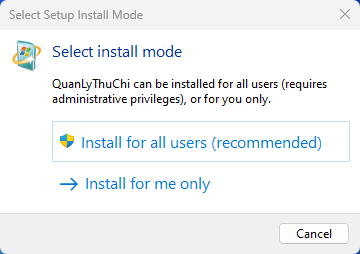
			<span style="line-height:107%"><span style="font-family:&#039;Times New Roman&#039;,serif"><span style="line-height:107%"><span style="color:black">Khi File </span></span><b><span style="line-height:107%"><span style="color:rgb(46, 116, 181);">QuanLyThuChiSetup.exe</span></span></b> <span style="line-height:107%"><span style="color:black">được kích hoạt, một hộp thoại hiện ra yêu cầu bạn chọn hoặc một trong hai phương thức cài đặt</span></span></span></span></span></div>

			<div style="text-align:center"><img alt="image001" height="183" src="https://c2nguyentruongto-eawer.edu.vn/uploads/news/2025_09/image001.png" style="width:286px; height:155px" width="260" /></div>

			<div style="text-align: justify;"><span style="font-size:18px;"><span style="line-height:107%"><span style="font-family:&#039;Times New Roman&#039;,serif"><b><i><span style="line-height:107%"><span style="color:rgb(46, 116, 181);">Install for all users (recommended)</span></span></i></b><span style="line-height:107%"><span style="color:black">: Chọn cài để dùng cho tất cả các User</span></span></span></span><br  />
			<span style="line-height:107%"><span style="font-family:&#039;Times New Roman&#039;,serif"><b><i><span style="line-height:107%"><span style="color:rgb(46, 116, 181);">Install for me only</span></span></i></b><span style="line-height:107%"><span style="color:black">: Cài chỉ cho User của bạn (<i>với lựa chọn này thì các User khác đăng nhập vào máy đã cài cũng không thấy được chương trình của bạn. Cách lựa chọn này chỉ khi nào máy vi tính của bạn dùng chung cho nhiều người</i>).</span></span></span></span><br  />
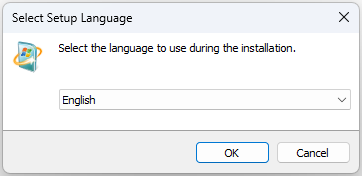
			<span style="line-height:107%"><span style="font-family:&#039;Times New Roman&#039;,serif"><span style="line-height:107%"><span style="color:black">Tiếp theo bạn phải chọn ngôn ngữ cài đặt (<i>mặc định là English</i>), rồi nhấp nút “<b><i>OK</i></b>”</span></span></span></span></span></div>

			<div style="text-align:center"><img alt="image003" height="127" src="https://c2nguyentruongto-eawer.edu.vn/uploads/news/2025_09/image003.png" style="width:286px; height:131px" width="262" /></div>

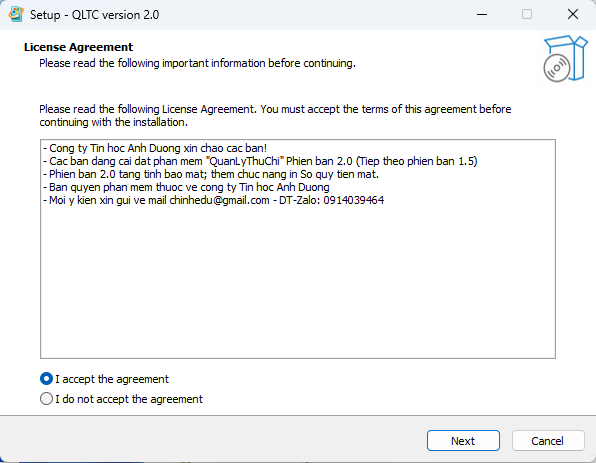
			<div style="text-align: justify;"><span style="font-size:18px;"><span style="line-height:107%"><span style="font-family:&#039;Times New Roman&#039;,serif"><span style="line-height:107%"><span style="color:black">Trên cửa sổ hiện tiếp theo, nhấp chọn “</span></span><b><i><span style="line-height:107%"><span style="color:rgb(46, 116, 181);">I accept the agreement</span></span></i></b><span style="line-height:107%"><span style="color:black">”, khi đó nút “</span></span><b><i><span style="line-height:107%"><span style="color:rgb(46, 116, 181);">Next</span></span></i></b><span style="line-height:107%"><span style="color:black">” nổi lên, bạn nhấp chọn.</span></span></span></span></span></div>

			<div style="text-align:center"><img alt="image005" height="334" src="https://c2nguyentruongto-eawer.edu.vn/uploads/news/2025_09/image005.png" style="width:491px; height:381px" width="430" /></div>
			<span style="font-size:18px;"> &nbsp;</span>

			<div style="text-align:center"><img alt="image007" height="411" src="https://c2nguyentruongto-eawer.edu.vn/uploads/news/2025_09/image007.png" style="width:491px; height:381px" width="530" /></div>

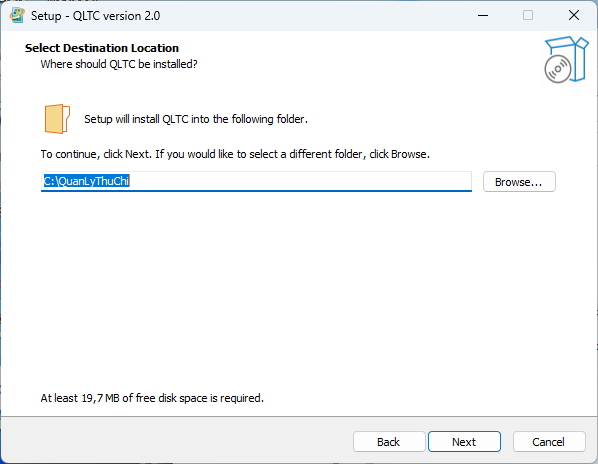
			<div style="text-align: justify;"><span style="font-size:18px;"><span style="line-height:107%"><span style="font-family:&#039;Times New Roman&#039;,serif"><span style="line-height:107%"><span style="color:black">Tiếp theo chọn “</span></span><b><i><span style="line-height:107%"><span style="color:rgb(46, 116, 181);">Next</span></span></i></b><span style="line-height:107%"><span style="color:black">”. Khi đó có yêu cầu chọn đường dẫn lưu toàn bộ chương trình cài đặt vào (<i>mặc định là</i> <i>C:\QuanLyThuChi</i>).</span></span></span></span></span></div>

			<div style="text-align:center"><img alt="image009" height="334" src="https://c2nguyentruongto-eawer.edu.vn/uploads/news/2025_09/image009.png" style="width:491px; height:381px" width="430" /></div>

			<div style="text-align: justify;"><span style="font-size:18px;"><span style="line-height:107%"><span style="font-family:&#039;Times New Roman&#039;,serif"><span style="line-height:107%"><span style="color:black">Bạn có thể chọn đường dẫn khác bằng cách nhấp vào nút “</span></span><b><i><span style="line-height:107%"><span style="color:rgb(46, 116, 181);">Browse</span></span></i></b><span style="line-height:107%"><span style="color:black">” để chọn thư mục chứa toàn bộ Phần mềm cài đặt ra, rồi tiếp tục nhấp “</span></span><b><i><span style="line-height:107%"><span style="color:rgb(46, 116, 181);">Next</span></span></i></b><span style="line-height:107%"><span style="color:black">”.</span></span></span></span></span></div>

			<div style="text-align:center"><img alt="image011" height="333" src="https://c2nguyentruongto-eawer.edu.vn/uploads/news/2025_09/image011.png" style="width:491px; height:380px" width="430" /></div>

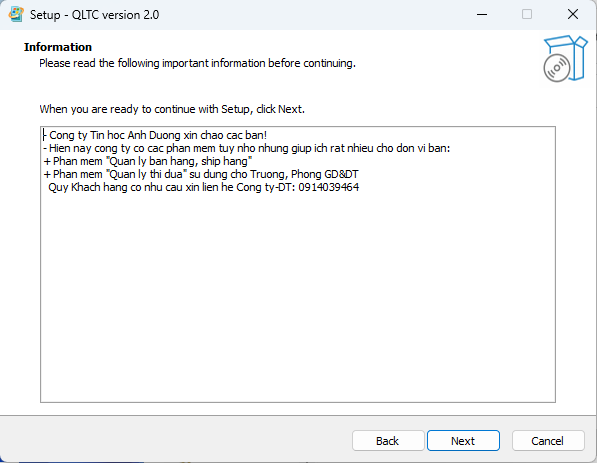
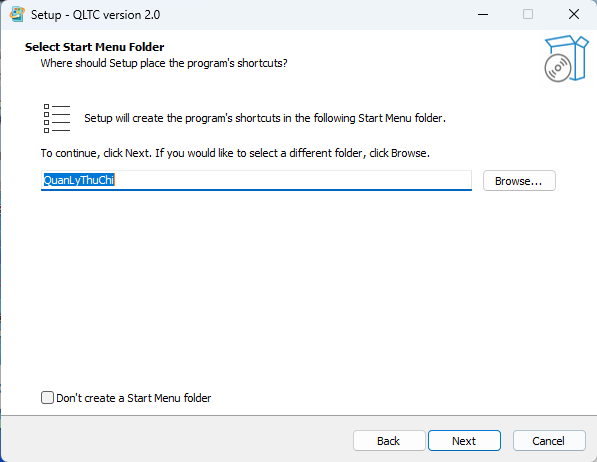
			<div style="text-align: justify;"><span style="font-size:18px;"><span style="line-height:107%"><span style="font-family:&#039;Times New Roman&#039;,serif"><span style="line-height:107%"><span style="color:black">Tiếp đó yêu cầu bạn nhập tên của thư chưa toàn bộ phần cài đặt trong Star Menu (<i>Tốt nhất là cứ để mặc định như hình</i>), rồi nhấp nút Next</span></span></span></span><br  />
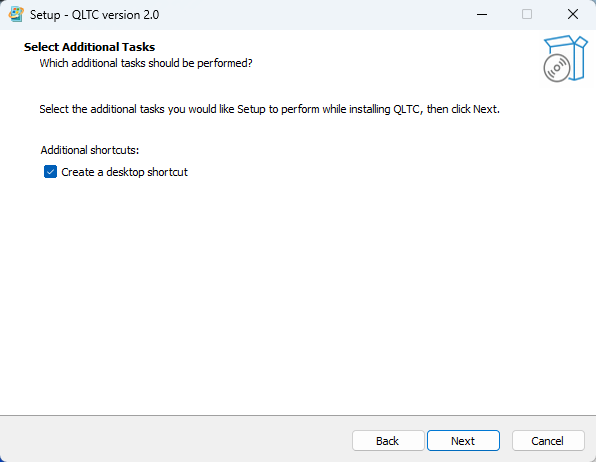
			<span style="line-height:107%"><span style="font-family:&#039;Times New Roman&#039;,serif"><span style="line-height:107%"><span style="color:black">Tiếp theo chương trình yêu cầu bạn check chọn nút </span></span><b><span style="line-height:107%"><span style="color:rgb(46, 116, 181);">Create a desktop shortcut </span></span></b><span style="line-height:107%">để<b> </b>tạo Shortcut ra màn hình Desktop, rồi nhấp “<b><i><span style="color:rgb(46, 116, 181);">Next</span></i></b>”</span></span></span></span></div>

			<div style="text-align:center"><img alt="image013" height="333" src="https://c2nguyentruongto-eawer.edu.vn/uploads/news/2025_09/image013.png" style="width:491px; height:381px" width="430" /></div>
			<span style="font-size:18px;"> &nbsp;</span>

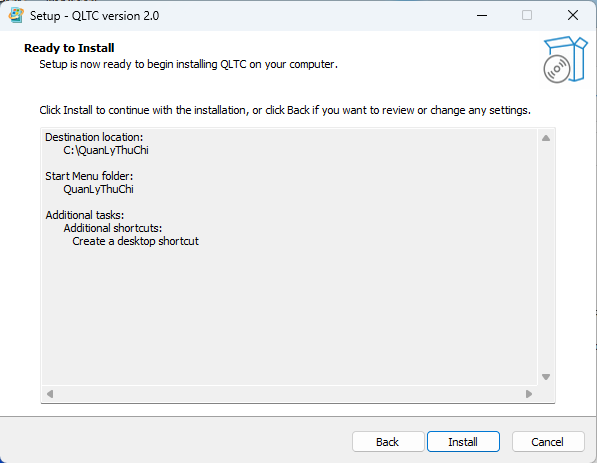
			<div style="text-align:center"><img alt="image015" height="333" src="https://c2nguyentruongto-eawer.edu.vn/uploads/news/2025_09/image015.png" style="width:491px; height:381px" width="430" /></div>
			<span style="font-size:18px;"> <span style="line-height:107%"><span style="font-family:&#039;Times New Roman&#039;,serif"><span style="line-height:107%"><span style="color:black">Nhấp nút “</span></span><b><i><span style="line-height:107%"><span style="color:rgb(46, 116, 181);">Install</span></span></i></b><span style="line-height:107%"><span style="color:black">”</span></span></span></span></span>

			<div style="text-align:center"><img alt="image017" height="333" src="https://c2nguyentruongto-eawer.edu.vn/uploads/news/2025_09/image017.png" style="width:491px; height:380px" width="430" /></div>
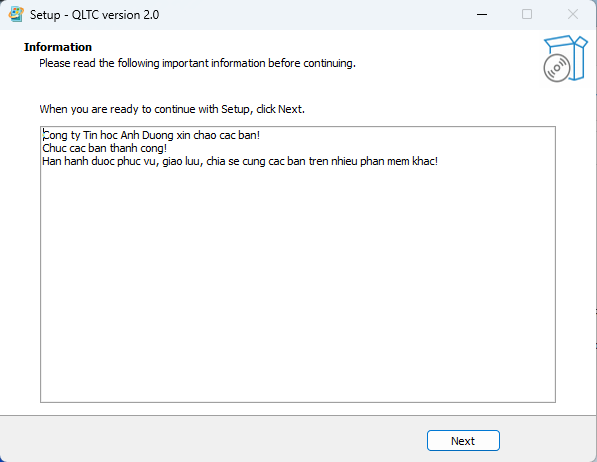
			<span style="font-size:18px;"> <span style="line-height:107%"><span style="font-family:&#039;Times New Roman&#039;,serif"><span style="line-height:107%"><span style="color:black">Sau đó nhấp chọn “</span></span><b><i><span style="line-height:107%"><span style="color:rgb(46, 116, 181);">Next</span></span></i></b><span style="line-height:107%"><span style="color:black">”.</span></span></span></span></span>

			<div style="text-align:center"><img alt="image019" height="334" src="https://c2nguyentruongto-eawer.edu.vn/uploads/news/2025_09/image019.png" style="width:491px; height:381px" width="430" /></div>

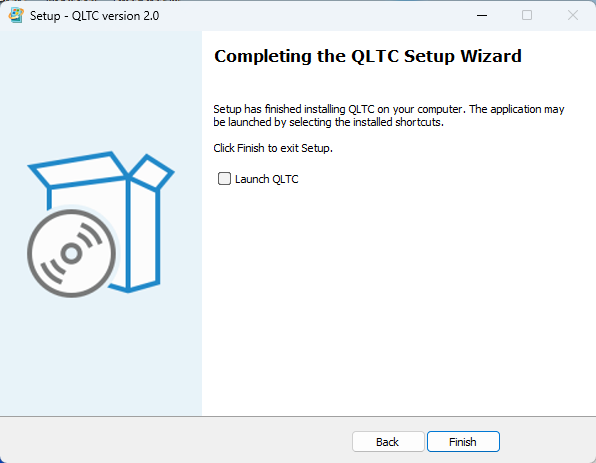
			<div style="text-align: justify;"><span style="font-size:18px;"><span style="line-height:107%"><span style="font-family:&#039;Times New Roman&#039;,serif"><span style="line-height:107%"><span style="color:black">Cuối cùng nhấp chọn “</span></span><b><i><span style="line-height:107%"><span style="color:rgb(46, 116, 181);">Finish</span></span></i></b><span style="line-height:107%"><span style="color:black">” để kết thúc quá trình cài đặt.</span></span></span></span><br  />
			<span style="line-height:107%"><span style="font-family:&#039;Times New Roman&#039;,serif"><span style="line-height:107%"><span style="color:black">Sau khi quá trình cài đặt hoàn tất Chương trình sẽ tạo Shortcut có tên “</span></span><b><i><span style="line-height:107%"><span style="color:rgb(46, 116, 181);">QuanLyThuChi</span></span></i></b><span style="line-height:107%"><span style="color:black">” trên màn hình Desktop, các bạn kích hoạt để mở chương trình bằng cách nhấp đúp vào Icon này. Các bạn cũng có thể kích hoạt chương trình bằng cách nhấp chọn App có tên “</span></span><b><i><span style="line-height:107%"><span style="color:rgb(46, 116, 181);">QuanLyThuChi</span></span></i></b><span style="line-height:107%"><span style="color:black">” trong menu Program.</span></span></span></span><br  />
			<span style="line-height:107%"><span style="font-family:&#039;Times New Roman&#039;,serif"><span style="line-height:107%"><span style="color:black">*<i>Lưu ý</i>: <i>Khi bạn chạy chương trình lần đầu tiên sau khi cài đặt thì có thể chưa thể đăng nhập vào ngay, do máy tính của bạn đang chặn macro. Khi đó có một thanh cảnh báo hiện lên, bạn chỉ việc nhấp vào “</i></span></span><b><i><span style="line-height:107%"><span style="color:rgb(46, 116, 181);">Enable Content</span></span></i></b><i><span style="line-height:107%"><span style="color:black">” trên thanh cảnh báo là xong</span></span></i><span style="line-height:107%"><span style="color:black">.</span></span></span></span></span></div>
			<span style="font-size:18px;"> <span style="line-height:107%"><span style="font-family:&#039;Times New Roman&#039;,serif"><b><span style="line-height:107%"><span style="color:rgb(0, 176, 80);">2</span></span></b><span style="line-height:107%"><span style="color:rgb(0, 176, 80);">. <b>HƯỚNG DẪN</b> <b>GỠ CÀI ĐẶT</b></span></span></span></span></span>

			<div style="text-align: justify;"><span style="font-size:18px;"><span style="line-height:107%"><span style="font-family:&#039;Times New Roman&#039;,serif"><span style="line-height:107%"><span style="color:black">Khi muốn gỡ cài đặt để cài lại, hoặc gở bỏ không sử dụng nữa, bạn có thể dùng 2 cách sau:</span></span></span></span><br  />
			<span style="line-height:107%"><span style="font-family:&#039;Times New Roman&#039;,serif"><span style="line-height:107%"><span style="color:black">* Cách 1: Vào Control Panel rồi vào </span></span><strong><span style="background:white"><span style="line-height:107%"><span style="color:rgb(46, 116, 181);">Programs and Features</span></span></span></strong><span style="line-height:107%"><span style="color:black"> (đối với Win10 trở đi), chọn “QuanLyThuChi”, sau đó nhấp chọn </span></span><b><span style="line-height:107%"><span style="color:rgb(46, 116, 181);">Uninstall</span></span></b><span style="line-height:107%">, hoặc nhấp nút phải chuột, rồi chọn <b><span style="color:rgb(46, 116, 181);">Uninstall</span></b>, chương trình sẽ được gỡ bỏ</span></span></span><br  />
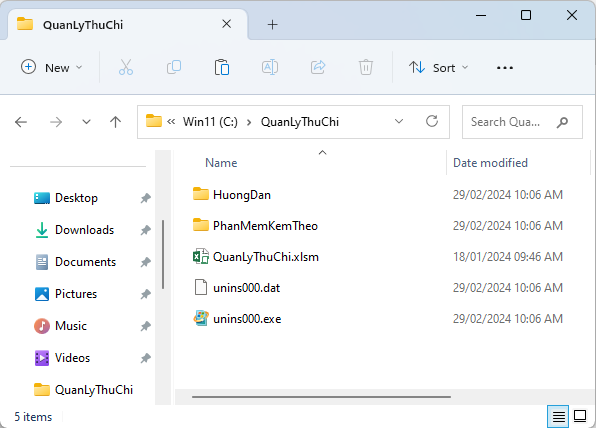
			<span style="line-height:107%"><span style="font-family:&#039;Times New Roman&#039;,serif"><span style="line-height:107%">* Cách 2: Mở thư mục “QuanLyThuChi” đã cài đặt rồi nhấp đúp File <b><span style="color:rgb(46, 116, 181);">unins000.exe</span></b>,<b> </b>chương trình sẽ tự động gỡ bỏ tất cả cho bạn. Khuyến khích bạn nên sử dụng cách này, cho nhanh gọn.</span></span></span></span></div>

			<div style="text-align:center"><img alt="image021" height="309" src="https://c2nguyentruongto-eawer.edu.vn/uploads/news/2025_09/image021.png" style="width:378px; height:271px" width="430" /></div>

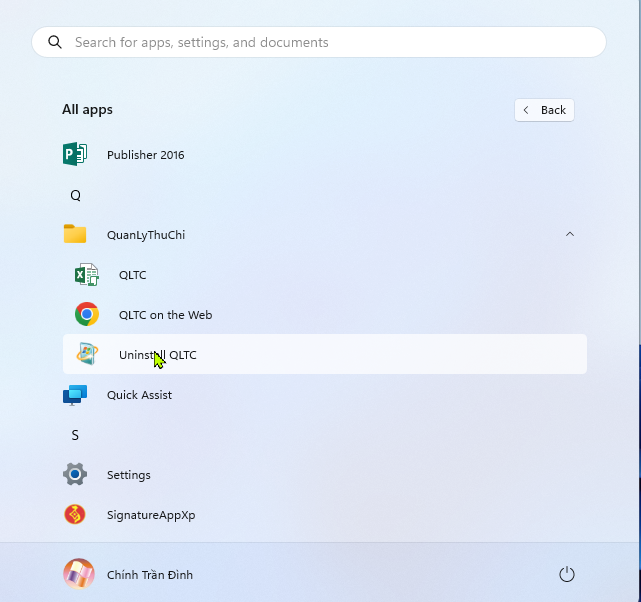
			<div style="text-align: justify;"><span style="font-size:18px;"><span style="line-height:107%"><span style="font-family:&#039;Times New Roman&#039;,serif"><span style="line-height:107%">* Cách 3: Nhấp vào nút Start, sau đó tìm đến thư mục có tên “<b><i>QuanLyThuChi</i></b>” nhấp chuột vào dòng “<b><i>QuanLyThuChi</i></b>” đó, menu sổ ra </span></span></span></span></div>

			<div style="text-align:center"><img alt="image023" height="404" src="https://c2nguyentruongto-eawer.edu.vn/uploads/news/2025_09/image023.png" style="width:491px; height:431px" width="430" /></div>
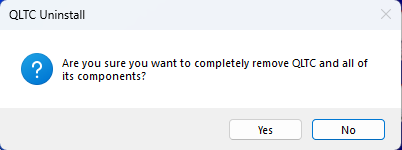
			<span style="font-size:18px;"> <span style="line-height:107%"><span style="font-family:&#039;Times New Roman&#039;,serif"><span style="line-height:107%">Bạn nhấp chọn “<b><i>Uninstall QLTC</i></b>”, một hộp thoại xuất hiện</span></span></span></span>

			<div style="text-align:center"><img alt="image025" height="75" src="https://c2nguyentruongto-eawer.edu.vn/uploads/news/2025_09/image025.png" style="width:402px; height:150px" width="202" /></div>

			<div style="text-align: justify;"><span style="font-size:18px;"><span style="line-height:107%"><span style="font-family:&#039;Times New Roman&#039;,serif"><span style="line-height:107%">Các bạn chọn “<b><i>Yes</i></b>” chương trình sẽ được gỡ bỏ khỏi hệ thống.</span></span></span></span></div>

			<div><span style="font-size:18px;"><span style="line-height:107%"><span style="font-family:&#039;Times New Roman&#039;,serif"><b><span style="line-height:107%"><span style="color:rgb(0, 176, 80);">3</span></span></b><span style="line-height:107%"><span style="color:rgb(0, 176, 80);">.<b> HƯỚNG DẪN CÁC THAO TÁC HỖ TRỢ PHẦN MỀM</b></span></span></span></span><br  />
			<span style="line-height:107%"><span style="font-family:&#039;Times New Roman&#039;,serif"><b><span style="line-height:107%"><span style="color:rgb(192, 0, 0);">1.1. Chọn chức năng Macro</span></span></b></span></span></span></div>

			<div style="text-align: justify;"><span style="font-size:18px;"><span style="line-height:107%"><span style="font-family:&#039;Times New Roman&#039;,serif"><span style="line-height:107%"><span style="color:black">Khi chạy chương trình lên, các nút lệnh khi bạn nhấp vào có thể đều báo lỗi, Bạn yên tâm, hiện tượng đó là do trên ứng dụng Excel của bạn đang Disable Macro, bạn thực hiện chọn cho ứng dụng Excel của bạn như sau:</span></span></span></span><br  />
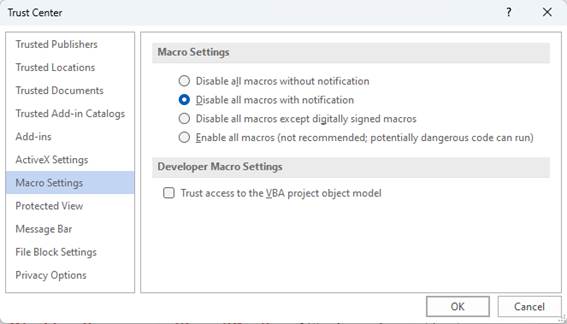
			<span style="line-height:107%"><span style="font-family:&#039;Times New Roman&#039;,serif"><span style="line-height:107%"><span style="color:black">Chọn thẻ “</span></span><b><i><span style="line-height:107%"><span style="color:rgb(46, 116, 181);">Developer</span></span></i></b><span style="line-height:107%"><span style="color:black">”, sau đó nhấp chọn nút “</span></span><b><i><span style="line-height:107%"><span style="color:rgb(46, 116, 181);">Macro Security</span></span></i></b><span style="line-height:107%"><span style="color:black">” (có biểu tượng tam giác màu vàng có hình dấu “!” ở giữa), một cửa sổ hiện ra, chọn Macro setting, có các tùy chọn hiện ra như hình sau:</span></span></span></span></span></div>

			<div style="text-align:center"><img alt="image027" height="303" src="https://c2nguyentruongto-eawer.edu.vn/uploads/news/2025_09/image027.jpg" style="width:378px; height:216px" width="530" /></div>

			<div style="text-align: justify;"><span style="font-size:18px;"><span style="background:white"><span style="line-height:107%"><span style="font-family:&#039;Times New Roman&#039;,serif"><span style="line-height:107%">*<b><i> <span style="color:rgb(192, 0, 0);">Disable all macros without notification</span></i></b>: Các macro và cảnh báo bảo mật liên quan đến chúng đều bị tắt.</span></span></span></span><br  />
			<span style="background:white"><span style="line-height:107%"><span style="font-family:&#039;Times New Roman&#039;,serif"><span style="line-height:107%">*<b><i> <span style="color:rgb(192, 0, 0);">Disable all macros with notification</span>:</i></b>&nbsp;Nếu bạn chọn nút này, macro sẽ bị tắt, nhưng cảnh báo bảo mật sẽ xuất hiện nếu có macro trong tệp tin. Nó cho phép bạn bật macro trong Excel tùy thuộc vào nguồn dữ liệu.</span></span></span></span><br  />
			<span style="background:white"><span style="line-height:107%"><span style="font-family:&#039;Times New Roman&#039;,serif"><span style="line-height:107%">*<b><i> <span style="color:rgb(192, 0, 0);">Disable all macros except digitally signed macros</span></i></b>: Trong trường hợp này, macro bị tắt, cảnh báo bảo mật xuất hiện và được ký điện tử bằng macro chạy trên tệp của người phát hành đáng tin cậy. Nếu bạn chưa tin tưởng người phát hành đó, bạn sẽ được thông báo hãy kích hoạt macro đã ký và chọn tin tưởng vào người phát hành.</span></span></span></span><br  />
			<span style="background:white"><span style="line-height:107%"><span style="font-family:&#039;Times New Roman&#039;,serif"><span style="line-height:107%">*<b><i> <span style="color:rgb(192, 0, 0);">Enable all macros (not recommended, potentially dangerous code can run)</span></i>:</b>&nbsp;Tất cả macro chạy mà không báo trước. Xin lưu ý rằng cài đặt này làm cho máy tính của bạn dễ bị nhiễm vi-rút.</span></span></span></span><br  />
			<span style="background:white"><span style="line-height:107%"><span style="font-family:&#039;Times New Roman&#039;,serif"><span style="line-height:107%">*<b><i> <span style="color:rgb(192, 0, 0);">Trust access to the VBA project object model</span></i></b>: tùy chọn này cấm hoặc cho phép truy cập chương trình vào&nbsp;<b><i><span style="color:rgb(192, 0, 0);">Visual Basic for Applications (VBA)</span></i></b>&nbsp;từ một máy khách tự động hóa. Cài đặt bảo mật này để mã hoá tin học một chương trình Office và thao tác trên môi trường&nbsp;<i>VBA</i>&nbsp;và mô hình đối tượng. Đối với khách hàng tự động hóa để truy cập vào mô hình đối tượng VBA, người dùng chạy mã phải được cấp quyền truy cập. Bạn cần phải đánh dấu vào các lựa chọn để truy cập.</span></span></span></span><br  />
			<span style="line-height:107%"><span style="font-family:&#039;Times New Roman&#039;,serif"><span style="line-height:107%"><span style="color:black">Bạn nên chọn “</span></span><b><i><span style="line-height:107%"><span style="color:red">Disable all macros with notification</span></span></i></b><span style="line-height:107%"><span style="color:black">”, rồi nhấp nút “</span></span><b><i><span style="line-height:107%"><span style="color:rgb(46, 116, 181);">Ok</span></span></i></b><span style="line-height:107%"><span style="color:black">”. Từ đó máy tính của bạn sẽ bật cảnh báo mỗi khi chạy một File có chứa macro. Nếu File bạn đang chạy cung cấp từ một nguồn đáng tin cậy, bạn chỉ việc chọn “</span></span><b><i><span style="line-height:107%"><span style="color:rgb(46, 116, 181);">Enable Content</span></span></i></b><span style="line-height:107%"><span style="color:black">” trên thanh cảnh báo là xong.</span></span></span></span><br  />
			<span style="line-height:107%"><span style="font-family:&#039;Times New Roman&#039;,serif"><span style="line-height:107%"><span style="color:black">Nếu bạn chọn </span></span><b><i><span style="line-height:107%"><span style="color:red">Enable all macros (not recommended, potentially dangerous code can run) </span></span></i></b><span style="line-height:107%">thì sẽ không có cảnh báo macro nữa, nhưng máy tính của bạn dễ bị nhiễm virut.</span></span></span><br  />
			<span style="line-height:107%"><span style="font-family:&#039;Times New Roman&#039;,serif"><span style="line-height:107%"><span style="color:black">Bạn nên xem thêm tại đây:</span></span></span></span><br  />
			<span style="line-height:107%"><span style="font-family:&#039;Times New Roman&#039;,serif"><a href="https://blog.hocexcel.online/cach-bat-macro-trong-excel-2010-2013-2016.html" style="color:rgb(5, 99, 193); text-decoration:underline"><span style="line-height:107%"><span style="color:rgb(0, 51, 204);">https://blog.hocexcel.online/cach-bat-macro-trong-excel-2010-2013-2016.html</span></span></a></span></span><br  />
			<span style="line-height:107%"><span style="font-family:&#039;Times New Roman&#039;,serif"><b><span style="line-height:107%"><span style="color:rgb(192, 0, 0);">1.2. Lấy thẻ Developer (<i>không bắt buộc</i>)</span></span></b></span></span><br  />
			<span style="line-height:107%"><span style="font-family:&#039;Times New Roman&#039;,serif"><span style="line-height:107%"><span style="color:black">Nếu trên thanh menu của Excel chưa có thẻ “</span></span><b><i><span style="line-height:107%"><span style="color:rgb(46, 116, 181);">Developer</span></span></i></b><span style="line-height:107%"><span style="color:black">”, bạn làm như sau: Nhấp “</span></span><b><i><span style="line-height:107%"><span style="color:rgb(46, 116, 181);">File</span></span></i></b><span style="line-height:107%"><span style="color:black">”, rồi chọn “</span></span><b><i><span style="line-height:107%"><span style="color:rgb(46, 116, 181);">Option</span></span></i></b><span style="line-height:107%"><span style="color:black">”, chọn “</span></span><b><i><span style="line-height:107%"><span style="color:rgb(46, 116, 181);">Customize Ribbon</span></span></i></b><span style="line-height:107%"><span style="color:black">”, chext chọn “</span></span><b><i><span style="line-height:107%"><span style="color:rgb(46, 116, 181);">Developer</span></span></i></b><span style="line-height:107%"><span style="color:black">” trong hộp “</span></span><b><i><span style="line-height:107%"><span style="color:rgb(46, 116, 181);">Customize the Ribbon</span></span></i></b><span style="line-height:107%"><span style="color:black">”, rồi nhấp “</span></span><b><i><span style="line-height:107%"><span style="color:rgb(46, 116, 181);">Ok</span></span></i></b><span style="line-height:107%"><span style="color:black">”. Vậy là trên thanh menu của bạn đã có thẻ “</span></span><b><i><span style="line-height:107%"><span style="color:rgb(46, 116, 181);">Developer</span></span></i></b><span style="line-height:107%"><span style="color:black">”.</span></span></span></span><br  />
			<span style="line-height:107%"><span style="font-family:&#039;Times New Roman&#039;,serif"><b><span style="line-height:107%"><span style="color:rgb(0, 112, 192);">Phần II. HƯỚNG DẪN SỬ DỤNG</span></span></b></span></span><br  />
			<span style="line-height:107%"><span style="font-family:&#039;Times New Roman&#039;,serif"><span style="line-height:107%"><span style="color:black">Bạn chạy chương trình bằng cách nhấp đúp chuột vào biểu tượng của chương trình có tên “<i>QLTC</i>” trên màn hình Desktop hoặc nhấp chuột vào App “<i>QLTC</i>” nằm trong thư mục “<i>QuanLyThuChi</i>” trong Start Menu. Với lần chạy đầu tiên sau khi cài đặt, chương trình sẽ yêu cầu tạo Data Backup. </span></span></span></span></span></div>
			<div style="text-align:center"><img alt="image029" height="131" src="https://c2nguyentruongto-eawer.edu.vn/uploads/news/2025_09/image029.jpg" style="width:227px; height:124px" width="240" /></div>

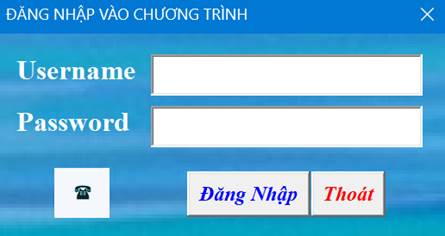
			<div style="text-align: justify;"><span style="font-size:18px;"><span style="line-height:107%"><span style="font-family:&#039;Times New Roman&#039;,serif"><span style="line-height:107%"><span style="color:black">Những lần chạy sau nếu bạn đã tạo Data Backup rồi thì hộp thoại này không xuất hiện nữa. Tiếp theo là hộp thoại đăng nhập hiện ra yêu cầu bạn nhập Username và Password.</span></span></span></span></span></div>

			<div style="text-align:center"><img alt="image031" height="183" src="https://c2nguyentruongto-eawer.edu.vn/uploads/news/2025_09/image031.jpg" style="width:297px; height:157px" width="345" /></div>

			<div style="text-align: justify;"><span style="font-size:18px;"><span style="line-height:107%"><span style="font-family:&#039;Times New Roman&#039;,serif"><span style="line-height:107%"><span style="color:black">(Demo chương trình với Username: </span><span style="color:red">Admin</span><span style="color:black"> và Pass: </span><span style="color:red">abc12345</span>). Khi gõ đúng Username và Password cửa sổ chính của chương trình sẽ được mở ra.</span></span></span><br  />
			<span style="line-height:107%"><span style="font-family:&#039;Times New Roman&#039;,serif"><span style="line-height:107%"><span style="color:black">Chương trình Quản Lý Thu Chi gồm 3 thẻ </span></span></span></span><br  />
			<span style="line-height:107%"><span style="font-family:&#039;Times New Roman&#039;,serif"><b><span style="line-height:107%"><span style="color:rgb(0, 176, 80);">1. HỆ THỐNG</span></span></b></span></span></span></div>
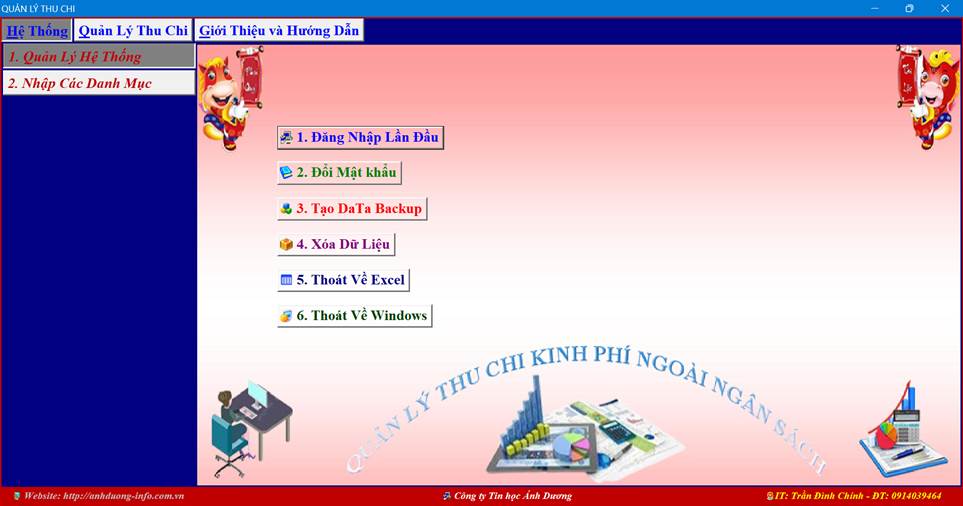
			<span style="font-size:18px;"> <span style="line-height:107%"><span style="font-family:&#039;Times New Roman&#039;,serif"><b><span style="line-height:107%"><span style="color:rgb(192, 0, 0);">1.1. Quản Lý Hệ Thống</span></span></b></span></span></span>

			<div style="text-align:center"><img alt="image033" height="278" src="https://c2nguyentruongto-eawer.edu.vn/uploads/news/2025_09/image033.jpg" width="530" /></div>
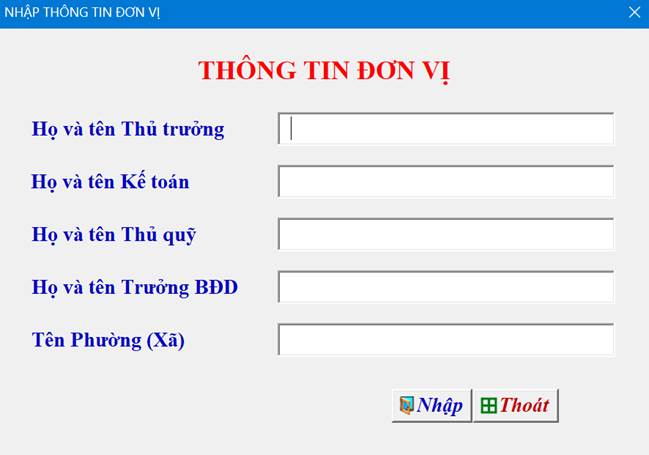
			<span style="font-size:18px;"> <span style="line-height:107%"><span style="font-family:&#039;Times New Roman&#039;,serif"><b><i><span style="line-height:107%"><span style="color:blue">1.1.1.</span></span></i></b><b><span style="line-height:107%"><span style="color:blue"> <i>Đăng nhập lần đầu</i></span></span></b></span></span></span>

			<div style="text-align: justify;"><span style="font-size:18px;"><span style="line-height:107%"><span style="font-family:&#039;Times New Roman&#039;,serif"><span style="line-height:107%">Trước khi sử dụng các phân hệ khác, các nội dung khác, các bạn phải đăng nhập lần đầu để nhập thông tin trường bao gồm họ và tên Thủ trưởng, họ và tên Kế toán, họ và tên Thủ quỹ, họ và tên trưởng Ban đại diện CMHS trường, tên Phường xã nơi trường đóng chân. Nếu trong quá trình sử dụng các thông tin nói trên có sự thay đổi bạn đăng nhập lần đầu để thực hiện nhập lại. (<i>Chức năng này chỉ thực hiện được khi các bạn đã đăng ký sử dụng</i>)</span></span></span></span>

			<div style="text-align:center"><img alt="image035" height="315" src="https://c2nguyentruongto-eawer.edu.vn/uploads/news/2025_09/image035.jpg" style="width:433px; height:303px" width="449" /></div>
			</div>
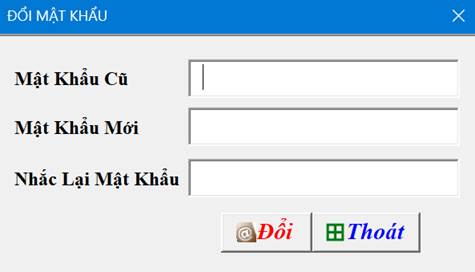
			<span style="font-size:18px;"><span style="line-height:107%"><span style="font-family:&#039;Times New Roman&#039;,serif"><b><i><span style="line-height:107%"><span style="color:blue">1.1.2.</span></span></i></b><b><span style="line-height:107%"><span style="color:blue"> <i>Đổi mật khẩu</i></span></span></b></span></span><br  />
			<span style="line-height:107%"><span style="font-family:&#039;Times New Roman&#039;,serif"><span style="line-height:107%">Các bạn có thể đổi mật khẩu bất kỳ lúc nào khi có nhu cầu</span></span></span></span>

			<div style="text-align:center"><img alt="image037" height="215" src="https://c2nguyentruongto-eawer.edu.vn/uploads/news/2025_09/image037.jpg" style="width:317px; height:181px" width="375" /></div>
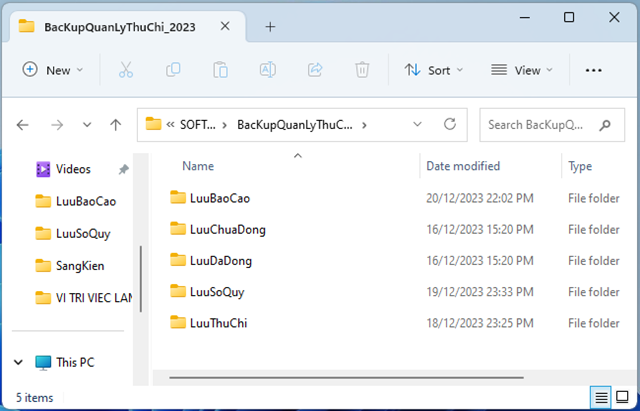
			<span style="font-size:18px;"> <span style="line-height:107%"><span style="font-family:&#039;Times New Roman&#039;,serif"><b><i><span style="line-height:107%"><span style="color:blue">1.1.3.</span></span></i></b><b><span style="line-height:107%"><span style="color:blue"> <i>Tạo DaTa Backup dữ liệu</i></span></span></b></span></span></span>

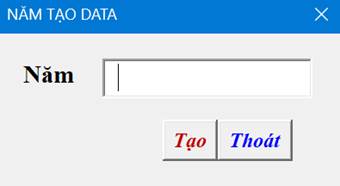
			<div style="text-align: justify;"><span style="font-size:18px;"><span style="line-height:107%"><span style="font-family:&#039;Times New Roman&#039;,serif"><span style="line-height:107%">Trước khi thực hiện các chức năng lưu, Xuất PDF, các bạn phải tạo DaTa lưu dữ liệu để lưu trữ các File được lưu, xuất ra từ chương trình. Các bạn thực hiện tạo DaTa bằng cách nhấp nút “<b><i>Tạo DaTa Lưu Dữ Liệu</i></b>”. Khi đó sẽ xuất hiện hộp thoại yêu cầu bạn nhập mật khẩu. Nếu mật khẩu đúng thì sẽ có hộp thoại tiếp theo yêu cầu bạn nhập năm tạo DaTa lưu dữ liệu. Kết quả sẽ có 01 thư mục có tên “<i>BackupQuanLyThuChi_Nam</i>” được tạo ra ở thu mục gốc đĩa D, với “<i>Nam</i>” là năm do bạn nhập vào. Bạn tạo DaTa lưu dữ liệu hiện tại (<i>gần nhất</i>) năm nào, thì toàn bộ dữ liệu lưu, xuất ra sẽ lưu vào DaTa năm đó.</span></span></span></span>

			<div style="text-align:center"><img alt="image039" height="283" src="https://c2nguyentruongto-eawer.edu.vn/uploads/news/2025_09/image039.png" style="width:427px; height:274px" width="440" /></div>
			</div>
			<span style="font-size:18px;"><span style="line-height:107%"><span style="font-family:&#039;Times New Roman&#039;,serif"><b><i><span style="line-height:107%"><span style="color:blue">1.1.4. Xóa Dữ Liệu</span></span></i></b></span></span></span>

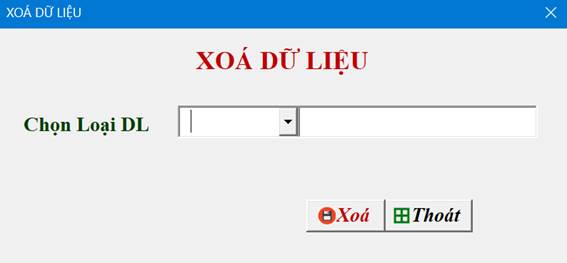
			<div style="text-align:center"><img alt="image041" height="217" src="https://c2nguyentruongto-eawer.edu.vn/uploads/news/2025_09/image041.jpg" style="width:378px; height:175px" width="467" /></div>

			<div style="text-align: justify;"><span style="font-size:18px;"><span style="line-height:107%"><span style="font-family:&#039;Times New Roman&#039;,serif"><span style="line-height:107%">Chức năng này cho phép bạn xóa dữ liệu Thu, Chi trên bảng tổng hợp thu, bảng tổng hợp chi, Danh sách thu, Danh mục lớp, danh mục khoản thu một cách tự động. Muốn xoá loại dữ liệu nào, các bạn sổ chọn Combobox, rồi nhấp nút “<b><i>Xoá</i></b>”. Chương trình sẽ hỏi bạn có chắc chắn xoá không? (<b><i>Yes/No</i></b>). Nếu chọn “<b><i>Yes</i></b>” chương trình sẽ yêu cầu bạn nhập mật khẩu. Nếu mật khẩu đúng sẽ được xoá, mật khẩu sai sẽ bị bỏ qua.</span></span></span></span></div>
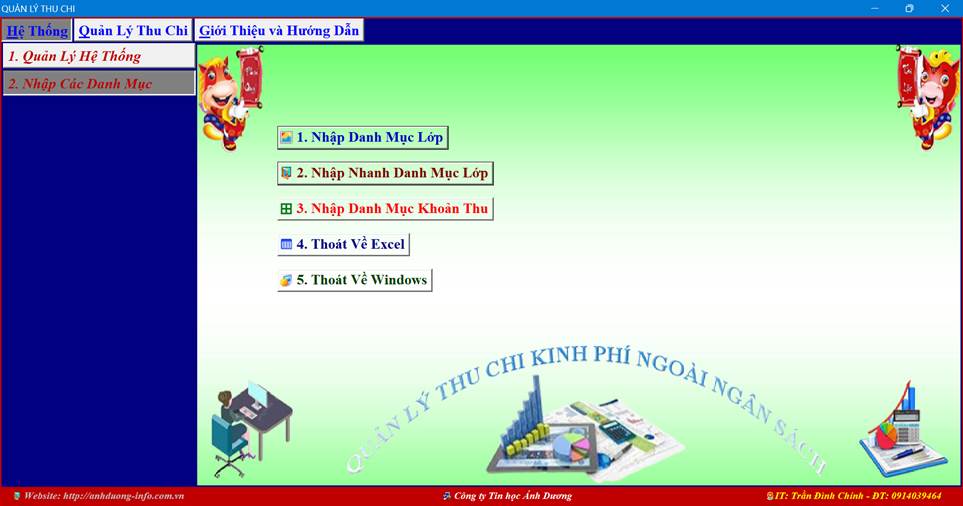
			<span style="font-size:18px;"> <span style="line-height:107%"><span style="font-family:&#039;Times New Roman&#039;,serif"><b><span style="line-height:107%"><span style="color:rgb(192, 0, 0);">1.2. Nhập Các Danh Mục</span></span></b></span></span></span>

			<div style="text-align:center"><img alt="image043" height="278" src="https://c2nguyentruongto-eawer.edu.vn/uploads/news/2025_09/image043.jpg" width="530" /></div>
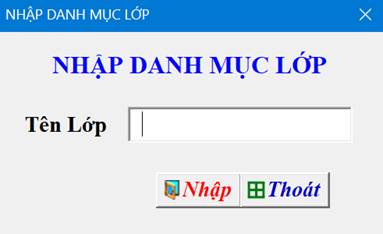
			<span style="font-size:18px;"> <span style="line-height:107%"><span style="font-family:&#039;Times New Roman&#039;,serif"><b><i><span style="line-height:107%"><span style="color:blue">2.1.1. Nhập Danh Mục Lớp</span></span></i></b></span></span></span>

			<div style="text-align: justify;"><span style="font-size:18px;"><span style="line-height:107%"><span style="font-family:&#039;Times New Roman&#039;,serif"><span style="line-height:107%">Đối với các lớp có tên lớp không theo quy luật thì các bạn nhập từng lớp theo chức năng này. Nếu các bạn nhập trùng tên lớp thì chương trình sẽ không cho nhập. Các lớp được tự động sắp xếp từ nhỏ đến lớn khi các bạn nhập lẫn lộn các khối lớp. (Lưu ý: Tên lớp không nhập dấu Tiếng Việt, nhập liên tiếp chứ không có kí tự trắng để giúp bạn tìm kiếm dễ dàng hơn sau này. Ví dụ: Mam2, Choi3, La1, …)</span></span></span></span>

			<div style="text-align:center"><img alt="image045" height="173" src="https://c2nguyentruongto-eawer.edu.vn/uploads/news/2025_09/image045.jpg" style="width:255px; height:156px" width="283" /></div>
			</div>
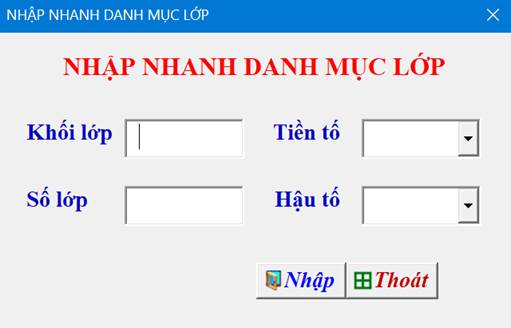
			<span style="font-size:18px;"><span style="line-height:107%"><span style="font-family:&#039;Times New Roman&#039;,serif"><b><i><span style="line-height:107%"><span style="color:blue">2.1.2. Nhập Nhanh Danh Mục Lớp</span></span></i></b></span></span></span>

			<div style="text-align: justify;"><span style="font-size:18px;"><span style="line-height:107%"><span style="font-family:&#039;Times New Roman&#039;,serif"><span style="line-height:107%">Các bạn có thể nhập nhanh Danh mục lớp bằng cách nhấp chuột vào nút “Nhập Nhanh Danh Mục lớp”. Trên cửa sổ hiện ra, bạn nhập tên Khối, số lớp của khối, và nhập tiền tố (Các ký tự đứng trước tên Khối), nhập hậu tố (Các kí tự đứng sau tên khối), chương trình sẽ tự đặt tên lớp và gán vào cho các lớp của từng khối như (Mam1, La2, 6A, 7B, 10A1, 10B2, A10A, A10B, …). Nếu các bạn nhập trùng tên lớp thì chương trình sẽ báo lỗi, không cho nhập.</span></span></span></span>

			<div style="text-align:center"><img alt="image047" height="264" src="https://c2nguyentruongto-eawer.edu.vn/uploads/news/2025_09/image047.jpg" style="width:341px; height:219px" width="411" /></div>
			</div>
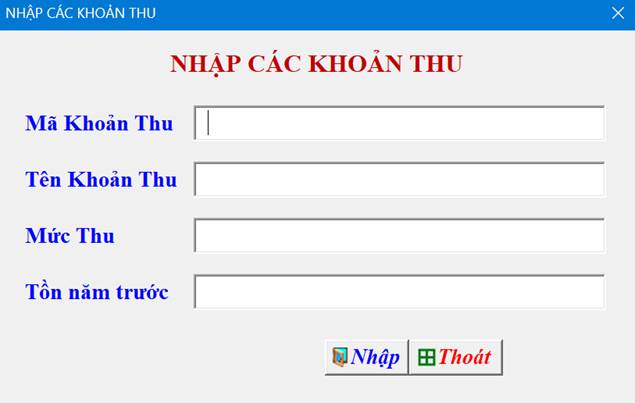
			<span style="font-size:18px;"><span style="line-height:107%"><span style="font-family:&#039;Times New Roman&#039;,serif"><b><i><span style="line-height:107%"><span style="color:blue">2.1.3. Nhập Danh Mục Khoản Thu</span></span></i></b></span></span></span>

			<div style="text-align: justify;"><span style="font-size:18px;"><span style="line-height:107%"><span style="font-family:&#039;Times New Roman&#039;,serif"><span style="line-height:107%">Chức năng này các bạn cũng phải thực hiện trước khi thực hiện các chức năng khác của phân hệ “<i>Quản Lý Thu Chi</i>”. Các bạn nhập các khoản thu và mức thu 01 lần vào đầu năm học.</span></span></span><br  />
			<span style="line-height:107%"><span style="font-family:&#039;Times New Roman&#039;,serif"><b><i><span style="line-height:107%"><span style="color:red">* Lưu ý: Riêng khoản quỹ Ban đại diện CMHS, buộc các bạn phải nhập mã quỹ là “QH”, vì quỹ này sử dụng mẫu phiếu riêng</span></span></i></b><span style="line-height:107%">.</span></span></span></span>

			<div style="text-align:center"><img alt="image049" height="340" src="https://c2nguyentruongto-eawer.edu.vn/uploads/news/2025_09/image049.jpg" style="width:423px; height:269px" width="535" /></div>
			</div>
			<span style="font-size:18px;"><span style="line-height:107%"><span style="font-family:&#039;Times New Roman&#039;,serif"><b><span style="line-height:107%"><span style="color:rgb(0, 176, 80);">2. QUẢN LÝ THU CHI</span></span></b></span></span><br  />
			<span style="line-height:107%"><span style="font-family:&#039;Times New Roman&#039;,serif"><b><span style="line-height:107%"><span style="color:rgb(192, 0, 0);">2.1. Nhập Dữ Liệu</span></span></b></span></span></span>

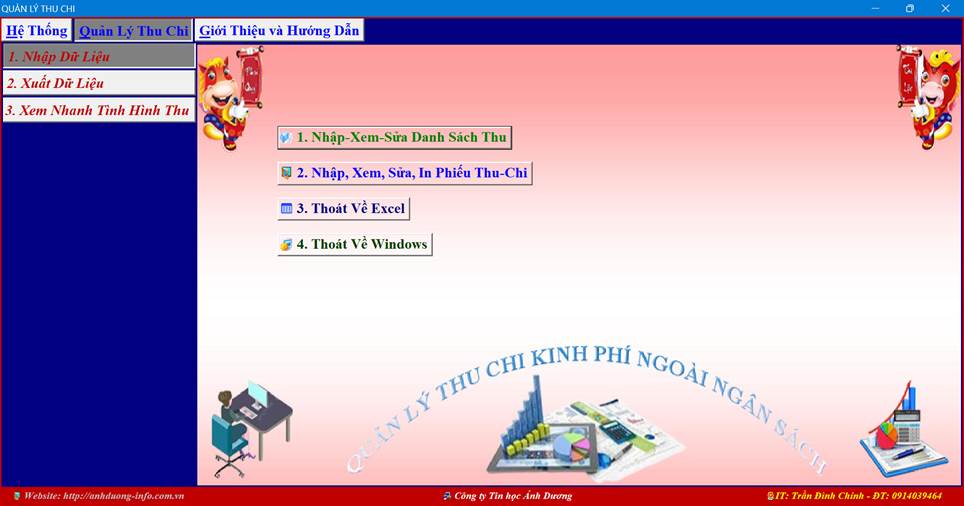
			<div style="text-align:center"><img alt="image051" height="278" src="https://c2nguyentruongto-eawer.edu.vn/uploads/news/2025_09/image051.jpg" width="530" /></div>
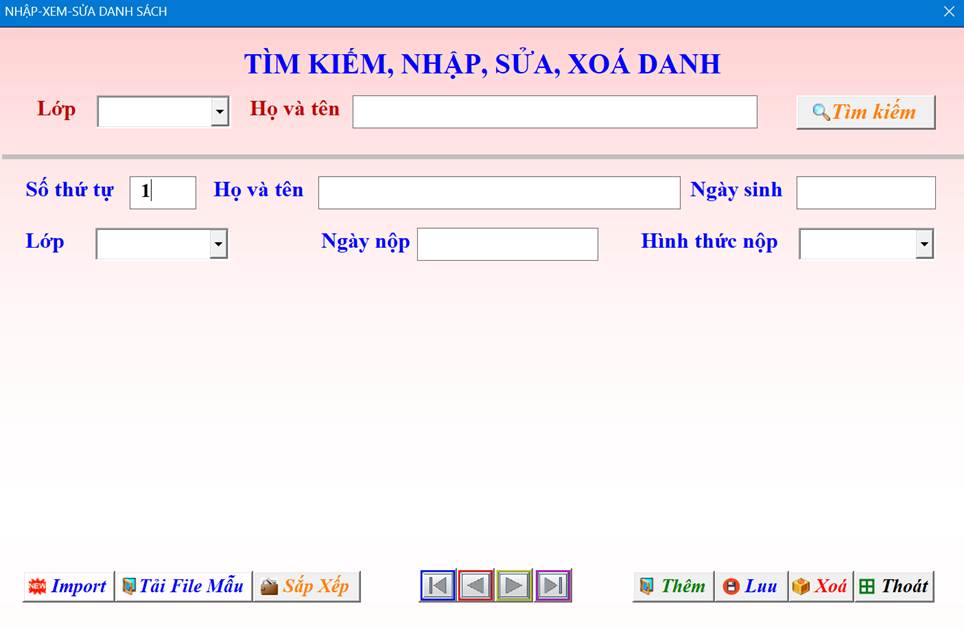
			<span style="font-size:18px;"> <span style="line-height:107%"><span style="font-family:&#039;Times New Roman&#039;,serif"><b><i><span style="line-height:107%"><span style="color:blue">2.1.1. Nhập, Xem, Sửa Danh Sách thu</span></span></i></b></span></span></span>

			<div style="text-align:center"><img alt="image053" height="303" src="https://c2nguyentruongto-eawer.edu.vn/uploads/news/2025_09/image053.jpg" width="464" /></div>
			<span style="font-size:18px;"> -<b style="font-size: 16pt; font-family: &#039;Times New Roman&#039;, serif; text-align: justify;"> </b><span style="font-family: &#039;Times New Roman&#039;, serif; text-align: justify;">Tại cửa sổ này các bạn có thể</span><b style="font-size: 16pt; font-family: &#039;Times New Roman&#039;, serif; text-align: justify;"> </b><span style="font-family: &#039;Times New Roman&#039;, serif; text-align: justify;">xem thông tin</span><b style="font-size: 16pt; font-family: &#039;Times New Roman&#039;, serif; text-align: justify;"> </b><span style="font-family: &#039;Times New Roman&#039;, serif; text-align: justify;">cụ thể từng học sinh thông qua các nút “</span><b style="font-size: 16pt; font-family: &#039;Times New Roman&#039;, serif; text-align: justify;"><i>Đầu</i></b><span style="font-family: &#039;Times New Roman&#039;, serif; text-align: justify;">”, “</span><b style="font-size: 16pt; font-family: &#039;Times New Roman&#039;, serif; text-align: justify;"><i>Trước</i></b><span style="font-family: &#039;Times New Roman&#039;, serif; text-align: justify;">”, “</span><b style="font-size: 16pt; font-family: &#039;Times New Roman&#039;, serif; text-align: justify;"><i>Tiếp</i></b><span style="font-family: &#039;Times New Roman&#039;, serif; text-align: justify;">”, “</span><b style="font-size: 16pt; font-family: &#039;Times New Roman&#039;, serif; text-align: justify;"><i>Cuối</i></b><span style="font-family: &#039;Times New Roman&#039;, serif; text-align: justify;">”.</span></span>

			<div style="text-align: justify;"><span style="font-size:18px;"><span style="line-height:107%"><span style="font-family:&#039;Times New Roman&#039;,serif"><span style="line-height:107%">- Các bạn có thể tìm kiếm học sinh bằng cách sổ combo nhấp chọn lớp, nhập họ và tên của học sinh có trong lớp đó, sau đó nhấp nút “<b><i>Tìm Kiếm</i></b>” để xem thông tin của học sinh đó phía bên dưới. </span></span></span><br  />
			<span style="line-height:107%"><span style="font-family:&#039;Times New Roman&#039;,serif"><span style="line-height:107%">- Bạn cũng có thể sửa thông tin, hoặc xoá một học sinh khi nhấp vào nút “<b><i>Xoá</i></b>” sau đó nhấp nút “<b><i>Lưu</i></b>” để lưu thông tin đã sửa, xoá.</span></span></span><br  />
			<span style="line-height:107%"><span style="font-family:&#039;Times New Roman&#039;,serif"><span style="line-height:107%">- Các bạn có thể nhập thêm học sinh vào Danh sách thu bằng cách nhấp nút “<b><i>Thêm</i></b>”, nhập toàn bộ thông tin của học sinh đó, rồi nhấp nút “<b><i>Nhập</i></b>”.</span></span></span><br  />
			<span style="line-height:107%"><span style="font-family:&#039;Times New Roman&#039;,serif"><span style="line-height:107%">- Nhấp nút “<b><i>Thoát</i></b>” để đóng cửa sổ này.</span></span></span><br  />
			<span style="line-height:107%"><span style="font-family:&#039;Times New Roman&#039;,serif"><span style="line-height:107%">- Nút “<b><i>Sắp Xếp</i></b>” giúp người dùng sắp xếp lại danh sách sau khi nhập thêm, sửa, xoá thông tin học sinh nào đó.</span></span></span></span></div>
			<span style="font-size:18px;"> <span style="line-height:107%"><span style="font-family:&#039;Times New Roman&#039;,serif"><b><i><span style="line-height:107%"><span style="color:rgb(0, 112, 192);">2.1.1.1.</span></span></i></b><b><span style="line-height:107%"><span style="color:rgb(0, 112, 192);"> <i>ImPort Dữ Liệu</i></span></span></b></span></span></span>

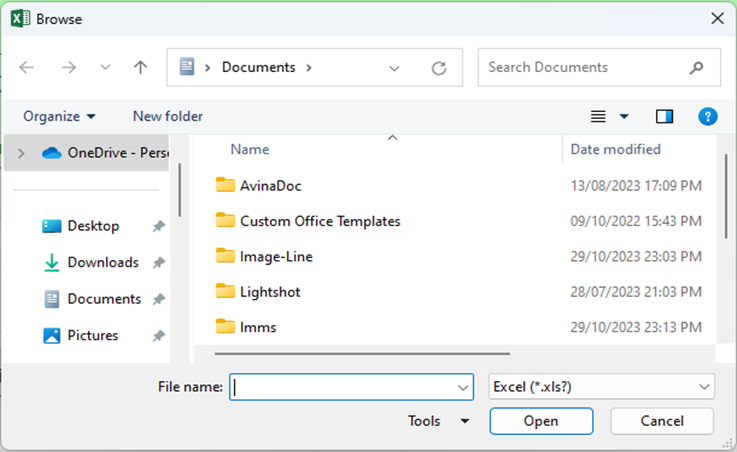
			<div style="text-align: justify;"><span style="font-size:18px;"><span style="line-height:107%"><span style="font-family:&#039;Times New Roman&#039;,serif"><span style="line-height:107%">Nhấp nút “<b><i>ImPort Dữ Liệu</i></b>”, tìm và nhấp chọn File mẫu có danh sách và dữ liệu các khoản thu mà các bạn đã nhập và lưu. Chương trình sẽ tự động đọc dữ liệu đã có trên File mẫu vào hệ thống. Nếu trên File mẫu có học sinh của một lớp nào đó trùng với họ và tên; ngày, tháng, năm sinh có trên hệ thống (Nghĩa là học sinh đó đã nhập vào hệ thống rồi) thì chương trình sẽ không cho Import cả File vào nữa để tránh nhập một học sinh nào đó nhiều hơn 1 lần. Khi báo lỗi, chương trình sẽ chỉ ra học sinh trùng đó.</span></span></span><br  />
			<span style="line-height:107%"><span style="font-family:&#039;Times New Roman&#039;,serif"><span style="line-height:107%">Trước khi ImPort Dữ liệu, các bạn tải File mẫu về để nhập dữ liệu</span></span></span></span></div>

			<div style="text-align: justify;"><span style="font-size:18px;"><span style="line-height:107%"><span style="font-family:&#039;Times New Roman&#039;,serif"><b><i><span style="line-height:107%"><span style="color:rgb(0, 112, 192);">2.1.1.2. Tải File Mẫu</span></span></i></b><span style="line-height:107%">: Các bạn nhấp nút “<b><i>Tải File mẫu</i></b>” để tải File mẫu có sẵn trên hệ thống. Sau đó các bạn nhập cột “Lớp”, “Họ và tên”, “Ngày sinh” (Có thể copy danh sách học sinh các lớp từ các phần mềm khác; Ngày sinh nhập theo định dạng <b>dd/mm/yyyy</b>. </span><a href="https://saohaivuong.com/20422/thay-doi-dinh-dang-ngay-thang-thanh-dd-mm-yyyy-tren-windows-11-hay-windows-10" style="color:rgb(5, 99, 193); text-decoration:underline"><span style="line-height:107%">Muốn vậy các bạn phải định dạng ngày trên hệ thống máy tính của bạn</span></a><span style="line-height:107%">. Tốt nhất định dạng “Text” cho cột “Ngày sinh”, “Ngày nộp”).</span></span></span><br  />
			<span style="line-height:107%"><span style="font-family:&#039;Times New Roman&#039;,serif"><span style="line-height:107%">Các cột khoản thu không nhập số tiền thu mà chỉ cần đánh dấu “X”</span></span></span></span>

			<div style="text-align:center"><img alt="image055" height="268" src="https://c2nguyentruongto-eawer.edu.vn/uploads/news/2025_09/image055.png" style="width:491px; height:301px" width="437" /></div>
			</div>
			<span style="font-size:18px;"><span style="line-height:107%"><span style="font-family:&#039;Times New Roman&#039;,serif"><b><i><span style="line-height:107%"><span style="color:rgb(0, 112, 192);">2.1.1.3. Sắp Xếp Lại Danh Sách</span></span></i></b></span></span></span>

			<div style="text-align: justify;"><span style="font-size:18px;"><span style="line-height:107%"><span style="font-family:&#039;Times New Roman&#039;,serif"><span style="line-height:107%">Vì dữ liệu nhập vào có thể chưa sắp xếp theo lớp và một số tiêu chí sắp xếp khác. Do đó chức năng này giúp các bạn sắp xếp lại danh sách theo lớp, theo ngày sinh và ngày nộp tiền, đánh lại số thứ tự từ nhỏ đến lớn. Các bạn phải thực hiện chức năng này trước khi in, lưu, xuất các Danh sách. Nên sử dụng chức năng này sau mỗi lần nhập bổ sung Danh sách thu hoặc có sửa thông tin học sinh, nhất là thay đổi lớp, ngày tháng năm sinh, ngày nộp tiền.</span></span></span></span></div>
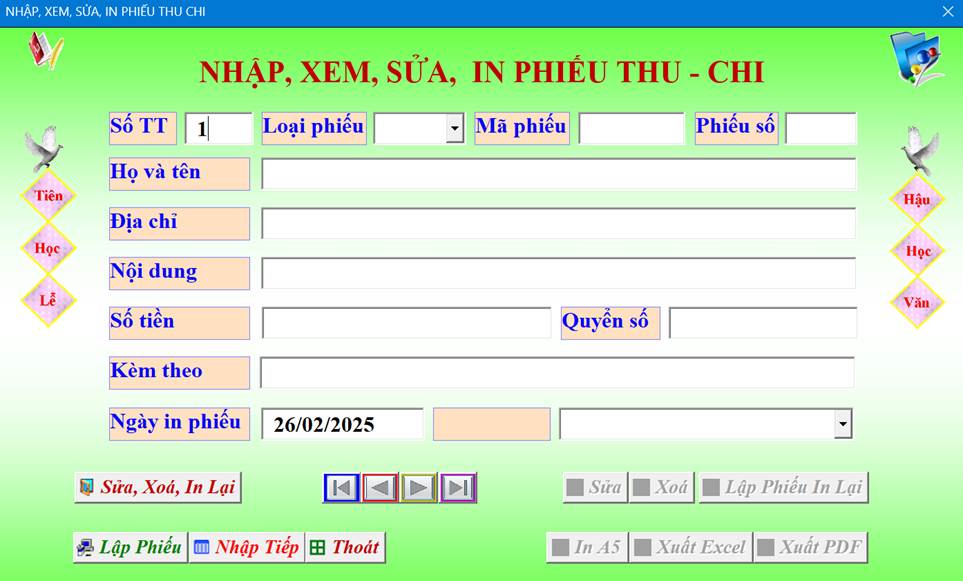
			<span style="font-size:18px;"> <span style="line-height:107%"><span style="font-family:&#039;Times New Roman&#039;,serif"><b><i><span style="line-height:107%"><span style="color:blue">2.1.2. Nhập, Xem, Sửa, In Phiếu Thu Chi</span></span></i></b></span></span></span>

			<div style="text-align:center"><img alt="image057" height="320" src="https://c2nguyentruongto-eawer.edu.vn/uploads/news/2025_09/image057.jpg" width="530" /></div>

			<div style="text-align: center;"><span style="font-size:18px;"><span style="line-height:normal"><span style="font-family:&#039;Times New Roman&#039;,serif"><i>Giao diện cửa sổ Nhập, xem, sửa, in phiếu thu-chi</i></span></span></span></div>

			<div style="text-align: justify;"><span style="font-size:18px;"><span style="line-height:normal"><span style="font-family:&#039;Times New Roman&#039;,serif">Nếu muốn nhập và in phiếu tiếp theo thì nhấp nút “<b><i>Làm Tiếp</i></b>”, lúc đó nút “<b><i>Lập phiếu</i></b>” sẽ nổi lên và các nút “<b><i>In A5</i></b>”, “<b><i>Xuất Excel</i></b>”, “<b><i>Xuất PDF</i></b>” sẽ lặn xuống.</span></span><br  />
			<span style="line-height:normal"><span style="font-family:&#039;Times New Roman&#039;,serif">Ngoài ra, nếu muốn xem, sửa, xoá và in lại phiếu đã nhập trước đây thì người dùng nhấp các nút “<b><i>Đầu</i></b>”, “<b><i>Trước</i></b>”, “<b><i>Tiếp</i></b>”, “<b><i>Cuối</i></b>” lần lượt để về dòng đầu tiên, về dòng liền trước, về dòng tiếp theo, về dòng cuối cùng để chọn phiếu. Nếu muốn sửa, xoá, in lại phiếu đang hiển thị trên cửa sổ thì người dùng nhấp vào nút “<b><i>Sửa, Xoá, In lại</i></b>”. Khi đó các nút “<b><i>Sửa</i></b>”, “<b><i>Xoá</i></b>”, “<b><i>Lập Phiếu In Lại</i></b>” sẽ nổi lên. Sau đó sửa thông tin của phiếu đang hiển thị trên cửa sổ rồi nhấp nút “<b><i>sửa</i></b>” để lưu thông tin phiếu đã sửa vào hệ thống (<i>nếu muốn sửa</i>). Nhấp nút “<b><i>xoá</i></b>” để xoá phiếu đang hiển thị trên cửa sổ (<i>nếu muốn xoá</i>). Nhấp nút “<b><i>Lập Phiếu In Lại</i></b>”, rồi nhấp “<b><i>In A5</i></b>”, “<b><i>Xuất Excel</i></b>”, “<b><i>Xuất PDF</i></b>” để in, xuất Excel, Xuất PDF như phiếu nhập mới (<i>Nếu muốn In, xuất Excel, xuất PDF phiếu cũ</i>)</span></span><br  />
			<span style="line-height:107%"><span style="font-family:&#039;Times New Roman&#039;,serif"><span style="line-height:107%">Nhấp nút “<b><i>Thoát</i></b>” để thoát khỏi cửa sổ “Nhập, Xem, Sửa, In Phiếu Thu-Chi”.</span></span></span><br  />
			<span style="line-height:107%"><span style="font-family:&#039;Times New Roman&#039;,serif"><span style="line-height:107%">- Nếu là phiếu thu thì sẽ được lưu:</span></span></span><br  />
			<span style="line-height:107%"><span style="font-family:&#039;Times New Roman&#039;,serif"><span style="line-height:107%">“<i>LuuThuChi\PhieuThu\PhieuThu_&lt;Mã phiếu thu&gt;_ dd-mm-yyyy_hh-mm”</i></span></span></span><br  />
			<span style="line-height:107%"><span style="font-family:&#039;Times New Roman&#039;,serif"><span style="line-height:107%">- Nếu là phiếu chi thì sẽ được lưu:</span></span></span><br  />
			<span style="line-height:107%"><span style="font-family:&#039;Times New Roman&#039;,serif"><span style="line-height:107%">“<i>LuuThuChi\PhieuChi\PhieuChi_&lt;Mã phiếu chi&gt;_ dd-mm-yyyy_hh-mm”</i></span></span></span></span></div>

			<div style="text-align: justify;"><span style="font-size:18px;"><span style="line-height:normal"><span style="font-family:&#039;Times New Roman&#039;,serif">Mục này giúp Người dùng nhập, xem, sửa in phiếu Thu-Chi tiền thu ngoài ngân sách. Sau khi đăng nhập thành công, một cửa sổ hiện ra cho phép Người dùng nhập và in phiếu Thu, Chi. Sau khi nhập đầy đủ thông tin, Người dùng nhấp nút “<b><i>Lập phiếu</i></b>”, khi đó các nút “<b><i>In A5</i></b>”, “<b><i>Xuất Excel</i></b>”, “<b><i>Xuất PDF</i></b>” nổi lên, đồng thời nút “<b><i>Lập phiếu</i></b>” lặn xuống. Người dùng nhấp nút “<b><i>In A5</i></b>” nếu muốn in, chương trình sẽ in phiếu ra giấy khổ A5; nhấp nút “<b><i>Xuất Excel</i></b>” nếu muốn lưu phiếu dưới dạng file Excel; nhấp nút “<b><i>Xuất PDF</i></b>” nếu muốn xuất ra file dạng PDF. Thông tin trên phiếu sẽ được lưu vào bảng tổng hợp chứng từ thu, bảng tổng hợp chứng từ chi.</span></span></span></div>
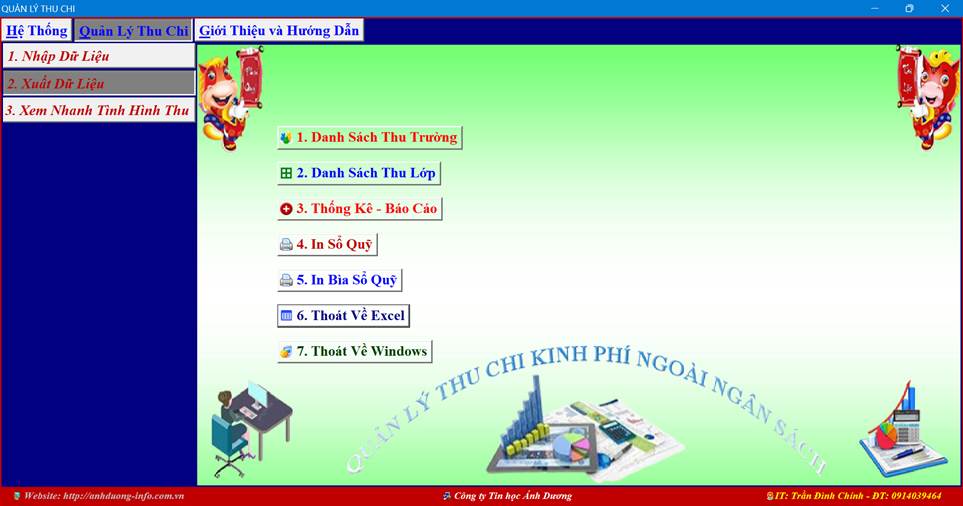
			<span style="font-size:18px;"> <span style="line-height:107%"><span style="font-family:&#039;Times New Roman&#039;,serif"><b><span style="line-height:107%"><span style="color:rgb(192, 0, 0);">2.2. Xuất Dữ Liệu</span></span></b></span></span></span>

			<div style="text-align:center"><img alt="image059" height="278" src="https://c2nguyentruongto-eawer.edu.vn/uploads/news/2025_09/image059.jpg" width="530" /></div>
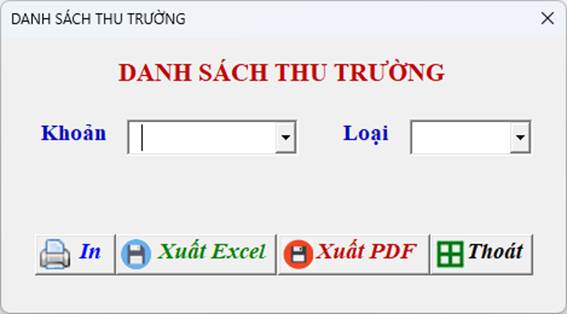
			<span style="font-size:18px;"> <span style="line-height:107%"><span style="font-family:&#039;Times New Roman&#039;,serif"><b><i><span style="line-height:107%"><span style="color:rgb(51, 51, 255);">2.2.1. Danh Sách Thu Trường</span></span></i></b></span></span></span>

			<div style="text-align: justify;"><span style="font-size:18px;"><span style="line-height:107%"><span style="font-family:&#039;Times New Roman&#039;,serif"><span style="line-height:107%">Khi nhấp chọn Menu “<b><i>Danh sách thu trường</i></b>”, cửa sổ “<b><i>Danh sách thu trường</i></b>” sẽ hiện ra</span></span></span></span>

			<div style="text-align:center"><img alt="image061" height="203" src="https://c2nguyentruongto-eawer.edu.vn/uploads/news/2025_09/image061.jpg" style="width:378px; height:209px" width="367" /></div>
			</div>

			<div style="text-align: justify;"><span style="font-size:18px;"><span style="line-height:107%"><span style="font-family:&#039;Times New Roman&#039;,serif"><span style="line-height:107%"><span style="color:rgb(0, 32, 96);">Các bạn sổ chọn Khoản thu trong Combobox “<i>Khoản thu</i>”, chọn loại (đã thu, chưa thu) trong Combobox “<i>Loại</i>”. Sau đó muốn in, hay xuất ra file Excel, hay xuất ra file PDF thì lần lượt nhấp nút “<b><i>In</i></b>”, “<b><i>Xuất Excel</i></b>”, “<b><i>Xuất PDF</i></b>”.</span></span></span></span></span></div>
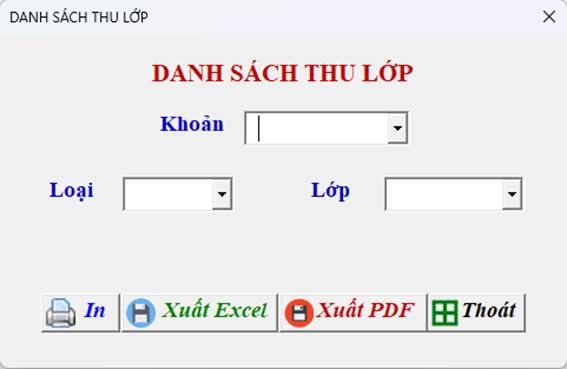
			<span style="font-size:18px;"> <span style="line-height:107%"><span style="font-family:&#039;Times New Roman&#039;,serif"><b><i><span style="line-height:107%"><span style="color:rgb(51, 51, 255);">2.2.2. Danh Sách Thu Lớp</span></span></i></b></span></span><br  />
			<span style="line-height:107%"><span style="font-family:&#039;Times New Roman&#039;,serif"><span style="line-height:107%">Khi nhấp chọn Menu “<b><i>Danh sách thu lớp</i></b>” một hộp thoại hiện ra</span></span></span></span>

			<div style="text-align:center"><img alt="image063" height="304" src="https://c2nguyentruongto-eawer.edu.vn/uploads/news/2025_09/image063.jpg" style="width:378px; height:246px" width="467" /></div>

			<div style="text-align: justify;"><span style="font-size:18px;"><span style="line-height:107%"><span style="font-family:&#039;Times New Roman&#039;,serif"><span style="line-height:107%"><span style="color:rgb(0, 32, 96);">ác bạn sổ chọn Khoản thu trong Combobox “<i>Khoản thu</i>”, chọn loại (đã thu, chưa thu) trong Combobox “<i>Loại</i>” rồi chọn lớp trong Combobox “<i>Lớp</i>”. Sau đó muốn in, hay xuất ra file Excel, hay xuất ra file PDF thì lần lượt nhấp nút “<b><i>In</i></b>”, “<b><i>Xuất Excel</i></b>”, “<b><i>Xuất PDF</i></b>”.</span></span></span></span></span></div>
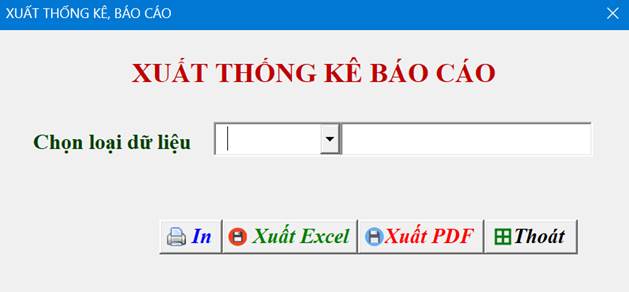
			<span style="font-size:18px;"> <span style="line-height:107%"><span style="font-family:&#039;Times New Roman&#039;,serif"><b><i><span style="line-height:107%"><span style="color:blue">2.2.3. Thống Kê – Báo Cáo</span></span></i></b></span></span><br  />
			<span style="line-height:107%"><span style="font-family:&#039;Times New Roman&#039;,serif"><span style="line-height:107%">Khi nhấp chọn Menu này, một hộp thoại hiện ra</span></span></span></span>

			<div style="text-align:center"><img alt="image065" height="199" src="https://c2nguyentruongto-eawer.edu.vn/uploads/news/2025_09/image065.jpg" style="width:419px; height:195px" width="429" /></div>

			<div style="text-align: justify;"><span style="font-size:18px;"><span style="line-height:107%"><span style="font-family:&#039;Times New Roman&#039;,serif"><span style="line-height:107%">ại đây các bạn sổ chọn loại dữ liệu, <span style="color:rgb(0, 32, 96);">sau đó muốn in, hay xuất ra file Excel, hay xuất ra file PDF thì lần lượt nhấp nút “<b><i>In</i></b>”, “<b><i>Xuất Excel</i></b>”, “<b><i>Xuất PDF</i></b>”.</span></span></span></span></span></div>
			<span style="font-size:18px;"> <span style="line-height:107%"><span style="font-family:&#039;Times New Roman&#039;,serif"><b><i><span style="line-height:107%"><span style="color:blue">2.2.4. Sổ Quỹ Tiền Mặt</span></span></i></b></span></span><br  />
			<span style="line-height:107%"><span style="font-family:&#039;Times New Roman&#039;,serif"><span style="line-height:107%">Khi nhấp chọn Menu này, một hộp thoại hiện ra</span></span></span></span>

			<div style="text-align:center"><img alt="image067" height="175" src="https://c2nguyentruongto-eawer.edu.vn/uploads/news/2025_09/image067.jpg" style="width:483px; height:261px" width="324" /></div>

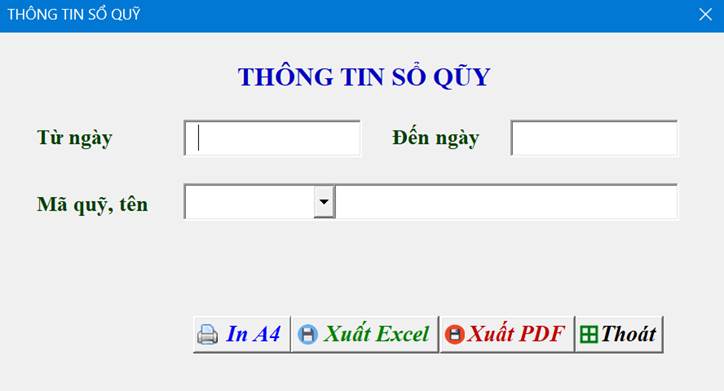
			<div style="text-align: justify;"><span style="font-size:18px;"><span style="line-height:107%"><span style="font-family:&#039;Times New Roman&#039;,serif"><span style="line-height:107%">Tại hộp thoại này các bạn nhập “<i>Từ ngày</i>”, “<i>Đến ngày</i>”, rồi sổ chọn mã quỹ, tên quỹ. <span style="color:rgb(0, 32, 96);">Sau đó muốn in, hay xuất ra file Excel, hay xuất ra file PDF thì lần lượt nhấp nút “<b><i>In</i></b>”, “<b><i>Xuất Excel</i></b>”, “<b><i>Xuất PDF</i></b>”.</span></span></span></span></span></div>
			<span style="font-size:18px;"> <span style="line-height:107%"><span style="font-family:&#039;Times New Roman&#039;,serif"><b><i><span style="line-height:107%"><span style="color:blue">2.2.5. In Bìa Sổ Quỹ</span></span></i></b></span></span><br  />
			<span style="line-height:107%"><span style="font-family:&#039;Times New Roman&#039;,serif"><span style="line-height:107%">Khi nhấp chọn Menu này một hộp thoại hiện ra</span></span></span></span>

			<div style="text-align:center"><img alt="image069" height="241" src="https://c2nguyentruongto-eawer.edu.vn/uploads/news/2025_09/image069.jpg" style="width:409px; height:239px" width="413" /></div>

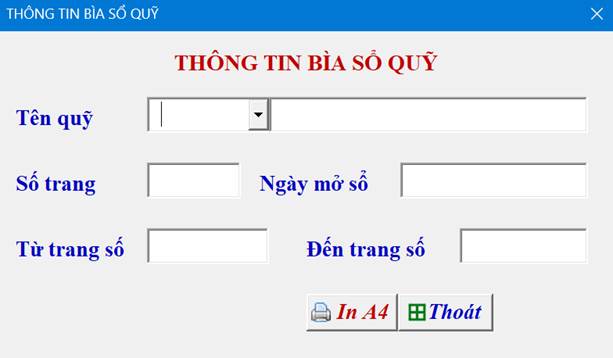
			<div style="text-align: justify;"><span style="font-size:18px;"><span style="line-height:107%"><span style="font-family:&#039;Times New Roman&#039;,serif"><span style="line-height:107%">Tại đây các bạn chọn <i>“tên quỹ”</i>, nhập <i>“số trang”</i>, nhập<i>“từ trang số”</i>, <i>“đến trang số”</i>, nhập <i>“ngày mở sổ”</i>, sau đó nhấp nút “<b><i>InA4</i></b>”. Chương trình sẽ in trực tiếp trang bìa sổ quỹ mà bạn đã chọn với đầy đủ các thông tin mà bạn đã nhập.</span></span></span></span></div>
			<span style="font-size:18px;"> <span style="line-height:107%"><span style="font-family:&#039;Times New Roman&#039;,serif"><b><span style="line-height:107%"><span style="color:rgb(192, 0, 0);">2.3. Xem Nhanh Tình Hình Thu-Chi</span></span></b></span></span></span>

			<div style="text-align:center"><img alt="image071" height="278" src="https://c2nguyentruongto-eawer.edu.vn/uploads/news/2025_09/image071.jpg" width="530" /></div>

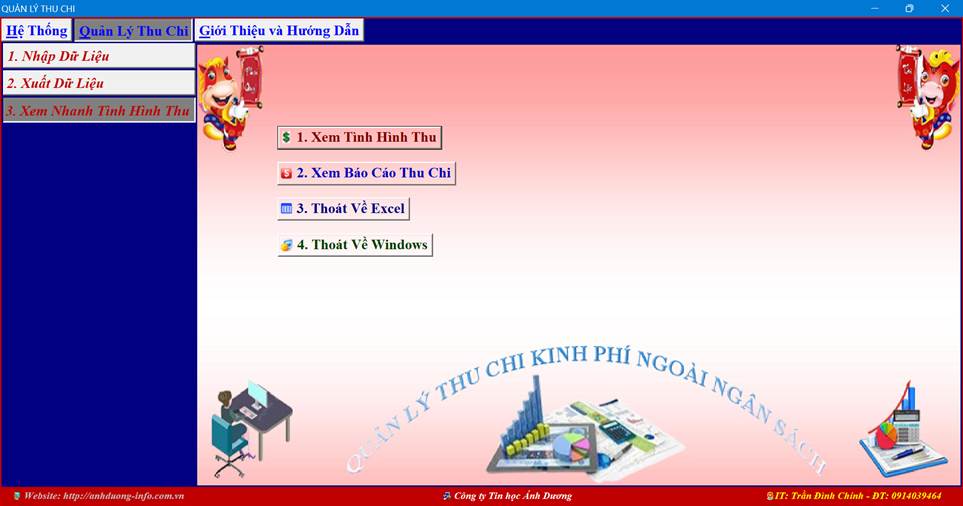
			<div style="text-align: center;"><span style="font-size:18px;"><span style="line-height:normal"><span style="font-family:&#039;Times New Roman&#039;,serif"><i>Giao diện Menu Xem nhanh tình hình thu - chi</i></span></span></span></div>
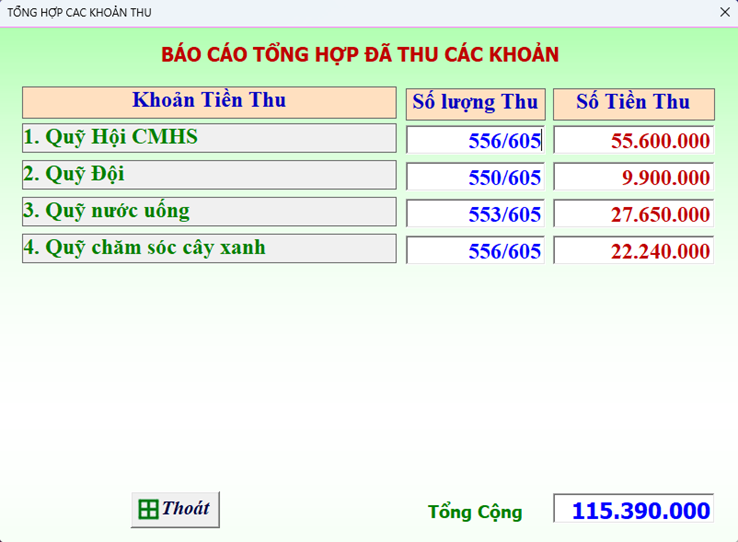
			<span style="font-size:18px;"> <span style="line-height:107%"><span style="font-family:&#039;Times New Roman&#039;,serif"><b><i><span style="line-height:107%"><span style="color:blue">2.3.1. Xem Nhanh Tình Hình Thu</span></span></i></b></span></span></span>

			<div style="text-align: justify;"><span style="font-size:18px;"><span style="line-height:107%"><span style="font-family:&#039;Times New Roman&#039;,serif"><span style="line-height:107%">Cho phép bạn xem nhanh thống kê số lượng và số tiền đã thu của từng khoản.</span></span></span></span></div>

			<table align="center" class="MsoTableGrid" style="border-collapse:collapse; border:none">
				<tbody>
					<tr>
						<td style="border:none; width:453.3pt; padding:0cm 5.4pt 0cm 5.4pt" valign="top" width="604">
						<div style="text-align:center"><img alt="image073" height="389" src="https://c2nguyentruongto-eawer.edu.vn/uploads/news/2025_09/image073.png" style="width:492px; height:361px" width="530" /></div>
						</td>
					</tr>
					<tr>
						<td style="border: none; width: 453.3pt; padding: 0cm 5.4pt; text-align: center;" valign="top" width="604"><span style="font-size:18px;"><span style="line-height:normal"><span style="font-family:&#039;Times New Roman&#039;,serif"><i>Giao diện xem nhanh Báo cáo tình hình thu</i></span></span></span></td>
					</tr>
				</tbody>
			</table>
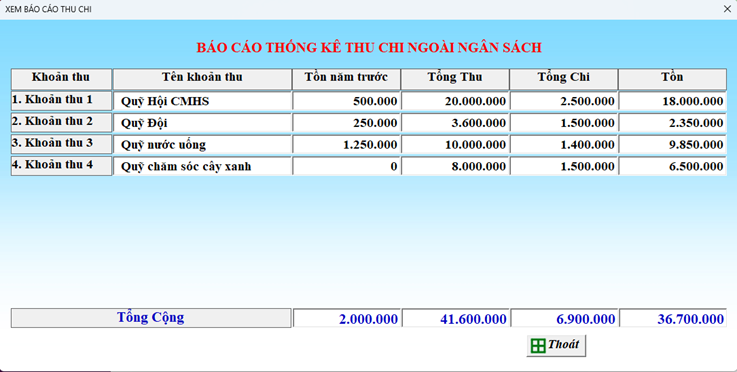
			<span style="font-size:18px;"> <span style="line-height:107%"><span style="font-family:&#039;Times New Roman&#039;,serif"><b><i><span style="line-height:107%"><span style="color:blue">2.3.2. Xem Nhanh Báo Cáo Thu Chi</span></span></i></b></span></span></span>

			<div style="text-align: justify;"><span style="font-size:18px;"><span style="line-height:107%"><span style="font-family:&#039;Times New Roman&#039;,serif"><span style="line-height:107%">Cho phép bạn xem nhanh Báo Cáo Thu Chi đến thời điểm hiện tại.</span></span></span></span></div>

			<table align="center" class="MsoTableGrid" style="border-collapse:collapse; border:none">
				<tbody>
					<tr style="height:198.6pt">
						<td style="border:none; width:16.0cm; padding:0cm 5.4pt 0cm 5.4pt; height:198.6pt" valign="top" width="605">
						<div style="text-align:center"><img alt="image075" height="268" src="https://c2nguyentruongto-eawer.edu.vn/uploads/news/2025_09/image075.png" style="width:491px; height:248px" width="530" /></div>
						</td>
					</tr>
					<tr style="height:12.35pt">
						<td style="border: none; width: 16cm; padding: 0cm 5.4pt; height: 12.35pt; text-align: center;" valign="top" width="605"><span style="font-size:18px;"><span style="line-height:normal"><span style="font-family:&#039;Times New Roman&#039;,serif"><i>Giao diện xem nhanh Báo cáo thống kê thu chi</i></span></span></span></td>
					</tr>
				</tbody>
			</table>

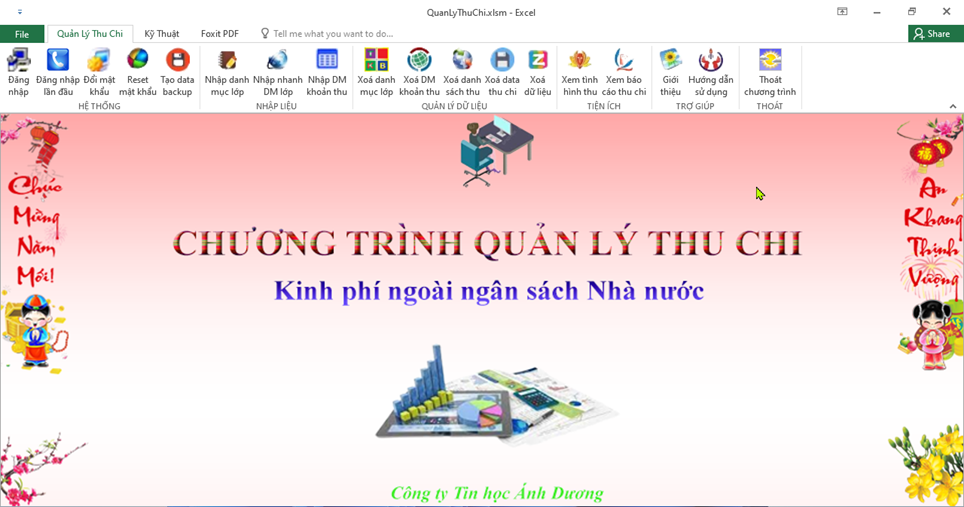
			<div style="text-align: justify;"><span style="font-size:18px;"><span style="line-height:107%"><span style="font-family:&#039;Times New Roman&#039;,serif"><span style="line-height:107%"><span style="color:blue">Ngoài ra các bạn cũng có thể sử dụng nhanh một số chức năng mà không cần đăng nhập vào chương trình chính bằng cách nhấp chọn chức năng mình cần trên thanh Menu<i> “</i></span></span><i><span style="line-height:107%"><span style="color:red">Quản Lý Thu Chi</span></span></i><i><span style="line-height:107%"><span style="color:blue">”.</span></span></i></span></span></span>

			<div style="text-align:center"><img alt="image077" height="279" src="https://c2nguyentruongto-eawer.edu.vn/uploads/news/2025_09/image077.png" width="530" /></div>

			<div style="text-align: center;"><span style="font-size:18px;"><span style="line-height:normal"><span style="font-family:&#039;Times New Roman&#039;,serif"><i>Giao diện khi chưa đăng nhập vào chương trình chính (dành cho người dùng)</i></span></span></span></div>
			</div>

			<div style="text-align:center"><img alt="image079" height="278" src="https://c2nguyentruongto-eawer.edu.vn/uploads/news/2025_09/image079.png" width="530" /></div>

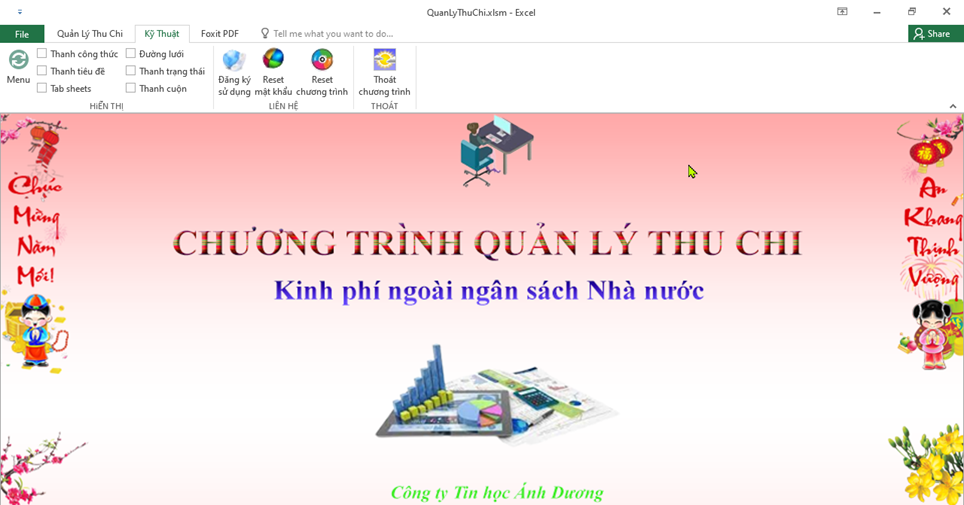
			<div style="text-align: center;"><span style="font-size:18px;"><span style="line-height:normal"><span style="font-family:&#039;Times New Roman&#039;,serif"><i>Giao diện khi chưa đăng nhập vào chương trình chính (dành cho Kỹ thuật)</i></span></span></span></div>
			<span style="font-size:18px;"> <span style="line-height:107%"><span style="font-family:&#039;Times New Roman&#039;,serif"><b><span style="line-height:107%"><span style="color:rgb(0, 176, 80);">3. GIỚI THIỆU VÀ HƯỚNG DẪN</span></span></b></span></span></span>

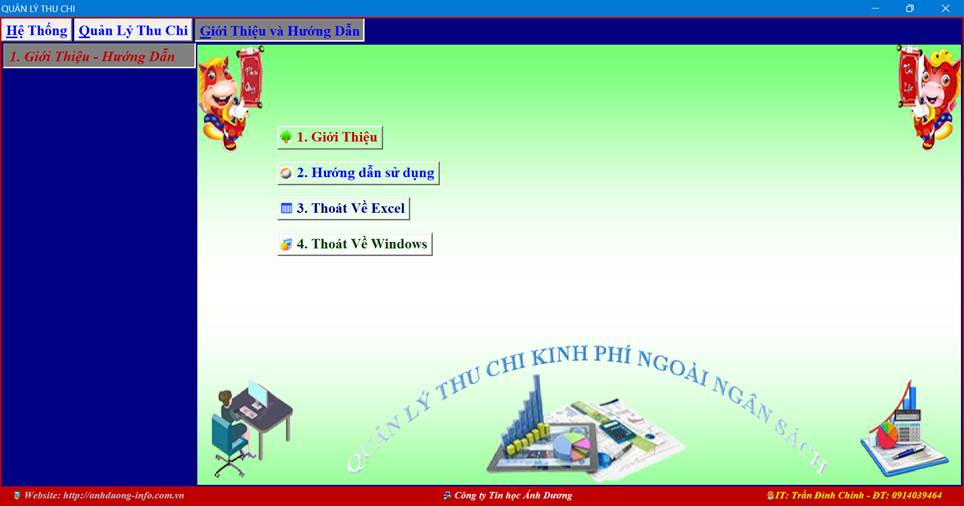
			<div style="text-align:center"><img alt="image081" height="278" src="https://c2nguyentruongto-eawer.edu.vn/uploads/news/2025_09/image081.jpg" width="530" /></div>

			<div style="text-align: center;"><span style="font-size:18px;"><span style="line-height:normal"><span style="font-family:&#039;Times New Roman&#039;,serif"><i>Giao diện Tab Hướng Dẫn Sử Dụng</i></span></span></span></div>
			<span style="font-size:18px;"> <span style="line-height:107%"><span style="font-family:&#039;Times New Roman&#039;,serif"><b><span style="line-height:107%"><span style="color:rgb(192, 0, 0);">3.1. Giới thiệu</span></span></b></span></span><br  />
			<span style="line-height:107%"><span style="font-family:&#039;Times New Roman&#039;,serif"><span style="line-height:107%"><a href="https://c2nguyentruongto-eawer.edu.vn/vi/news/tin-tuc/phan-mem-quan-ly-thu-chi-ngoai-ngan-sach-42.html" style="color:rgb(5, 99, 193); text-decoration:underline"><i>Giới thiệu tổng quan chương trình</i></a></span></span></span><br  />
			<span style="line-height:107%"><span style="font-family:&#039;Times New Roman&#039;,serif"><span style="line-height:107%"><b><span style="color:rgb(192, 0, 0);">3.2. Hướng dẫn sử dụng</span></b></span></span></span></span>

			<div style="text-align: justify;"><span style="font-size:18px;"><span style="line-height:107%"><span style="font-family:&#039;Times New Roman&#039;,serif"><span style="line-height:107%">Trong quá trình sử dụng, nếu bạn muốn xem hướng dẫn sử dụng thì nhấp chọn menu “<i>Hướng Dẫn Sử Dụng</i>”, nhấp nút “<b><i>Hướng Dẫn Sử Dụng</i></b>” Sẽ mở File hướng dẫn sử dụng chạy trên trình duyệt Web, các bạn chọn mục cần xem hướng dẫn để đọc.</span></span></span><br  />
			<span style="line-height:107%"><span style="font-family:&#039;Times New Roman&#039;,serif"><b><i><span style="line-height:107%"><span style="color:black">Tóm lại</span></span></i></b><span style="line-height:107%"><span style="color:black">: Chương trình rất dễ sử dụng. Các bạn chỉ việc làm theo hệ thống menu và thực hiện theo thứ tự từ trái sang phải, từ trên xuống dưới cho lần sử dụng đầu tiên.</span></span></span></span><br  />
			<span style="line-height:107%"><span style="font-family:&#039;Times New Roman&#039;,serif"><span style="line-height:107%"><span style="color:black">*</span></span><b><i><span style="line-height:107%"><span style="color:red">Lưu ý</span></span></i></b><span style="line-height:107%"><span style="color:black">: </span></span></span></span><br  />
			<span style="line-height:107%"><span style="font-family:&#039;Times New Roman&#039;,serif"><i><span style="line-height:107%"><span style="color:black">- Các File Excel, hoặc PDF xuất ra đều đã được định dạng trang in trước khi xuất File. Các bạn chỉ việc mở, in khi cần mà không cần định dạng nữa.</span></span></i></span></span><br  />
			<span style="line-height:107%"><span style="font-family:&#039;Times New Roman&#039;,serif"><i><span style="line-height:107%"><span style="color:black">- Tuyệt đối không được xoá, sửa các thư mục trong Data backup mà chương trình đã tạo ra.</span></span></i></span></span><br  />
			<span style="line-height:107%"><span style="font-family:&#039;Times New Roman&#039;,serif"><span style="line-height:107%">Chúc các bạn thành công!</span></span></span></span></div>

			<div style="text-align: center;"><span style="font-size:18px;"><a href="https://nguyenbinhkhiem-dlk.edu.vn/vi/download/Phan-mem/Phan-mem-quan-ly-thu-chi-tien-thu-trong-CMHS.html"><span style="color:rgb(51, 0, 255);"><em><strong>Tải </strong></em></span></a><a href="https://nguyenbinhkhiem-dlk.edu.vn/vi/download/Phan-mem/Phan-mem-quan-ly-thu-chi-tien-thu-trong-CMHS.html"><i><span style="color:rgb(51, 0, 255);"><strong>Soft cài đặt +</strong></span><span style="color:rgb(51, 0, 255);"><strong> </strong></span><span style="color:rgb(0, 0, 255);"><strong>Key bản quyền</strong></span></i><span style="color:rgb(0, 0, 204);"><em><strong> </strong></em></span><span style="color:rgb(51, 0, 255);"><em><strong>tại đây</strong></em></span></a></span></div>
			</td>
		</tr>
	</tbody>
</table>
		</div>
	</div>
	<div id="footer" class="clearfix">
		<div id="url">
			<strong>URL của bản tin này: </strong><a href="https://c2nguyentruongto-eawer.edu.vn/vi/news/tin-tuc/cai-dat-va-su-dung-phan-mem-quan-ly-thu-chi-tien-thu-tu-cmhs-46.html" title="Cài đặt và sử dụng phần mềm &quot;Quản lý thu chi&quot; tiền thu từ CMHS">https://c2nguyentruongto-eawer.edu.vn/vi/news/tin-tuc/cai-dat-va-su-dung-phan-mem-quan-ly-thu-chi-tien-thu-tu-cmhs-46.html</a>

		</div>
		<div class="clear"></div>
		<div class="copyright">
			&copy; Trường THCS Nguyễn Trường Tộ
		</div>
		<div id="contact">
			<a href="mailto:admin@example.com">admin@example.com</a>
		</div>
	</div>
</div>
        <div id="timeoutsess" class="chromeframe">
            Bạn đã không sử dụng Site, <a onclick="timeoutsesscancel();" href="https://c2nguyentruongto-eawer.edu.vn/#">Bấm vào đây để duy trì trạng thái đăng nhập</a>. Thời gian chờ: <span id="secField"> 60 </span> giây
        </div>
        <div id="openidResult" class="nv-alert" style="display:none"></div>
        <div id="openidBt" data-result="" data-redirect=""></div>
<script src="https://c2nguyentruongto-eawer.edu.vn/assets/js/jquery/jquery.min.js"></script>
<script>var nv_base_siteurl="/",nv_lang_data="vi",nv_lang_interface="vi",nv_name_variable="nv",nv_fc_variable="op",nv_lang_variable="language",nv_module_name="news",nv_func_name="savefile",nv_is_user=0, nv_my_ofs=-4,nv_my_abbr="EDT",nv_cookie_prefix="nv4c_u84WD",nv_check_pass_mstime=1738000,nv_area_admin=0,nv_safemode=0,theme_responsive=1,nv_is_recaptcha=0;</script>
<script src="https://c2nguyentruongto-eawer.edu.vn/assets/js/language/vi.js"></script>
<script src="https://c2nguyentruongto-eawer.edu.vn/assets/js/global.js"></script>
<script src="https://c2nguyentruongto-eawer.edu.vn/themes/chinhedit2025/js/news.js"></script>
<script src="https://c2nguyentruongto-eawer.edu.vn/themes/chinhedit2025/js/main.js"></script>
<script async defer crossorigin="anonymous" 
    src="https://connect.facebook.net/vi_VN/sdk.js#xfbml=1&version=v17.0" 
    nonce="FbPlugin"></script>
<script src="https://c2nguyentruongto-eawer.edu.vn/themes/chinhedit2025/js/bootstrap.min.js"></script>
</body>
</html>